Using the customer portal
A short tour of the site your service company gave you — sign in, see your work, pay bills, and message the team.
The customer portal is a simple website for you (the homeowner or business that hired the company). It is not the same as the office software the team uses day to day.
You sign in with your mobile number (the one the company has on file). They text a one-time code. There is no password to remember.
Sign in (brief)
- Open the link the company sent (it may look like their business name).
- Enter your phone number and request a code.
- Type the 6-digit code from the text.
- If that phone is used with more than one company, pick the right business.
- The first time, agree to the portal terms. If the company later changes the phone number on your account, you agree to them again the next time you sign in.
When you sign in from a browser you have not used before, we email the address the company has on file for you, so you can tell if it was not you.
If a code does not arrive, wait a minute, tap resend, or call the company — their phone is often on the sign-in screen.
Overview
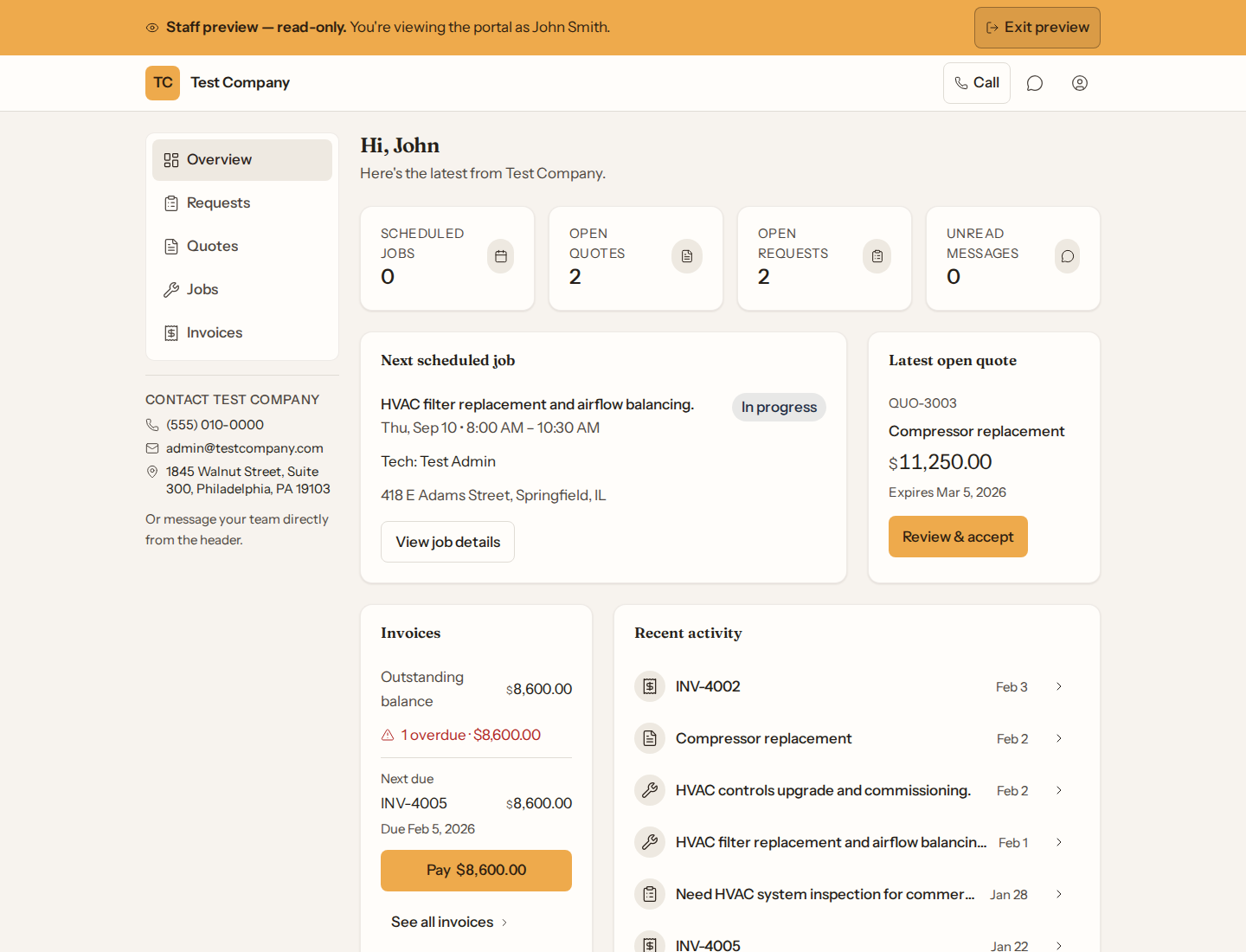
After sign-in you land on Overview: counts for jobs, quotes, and requests, your next visit, latest quote, next bill, and recent activity. Use the left menu (or the row of links on a phone) to open each area.
Messages only appears if the company turned chat on.
What the company can turn off
The office can disable new requests, online payment, profile edits, or messaging. If a button you expect is missing, that is usually a setting on their side — contact them.
Staff preview
If you ever see a yellow Staff preview bar, that is your service company looking at the portal as you, read-only. They cannot pay or sign as you from that view.