Dispatch
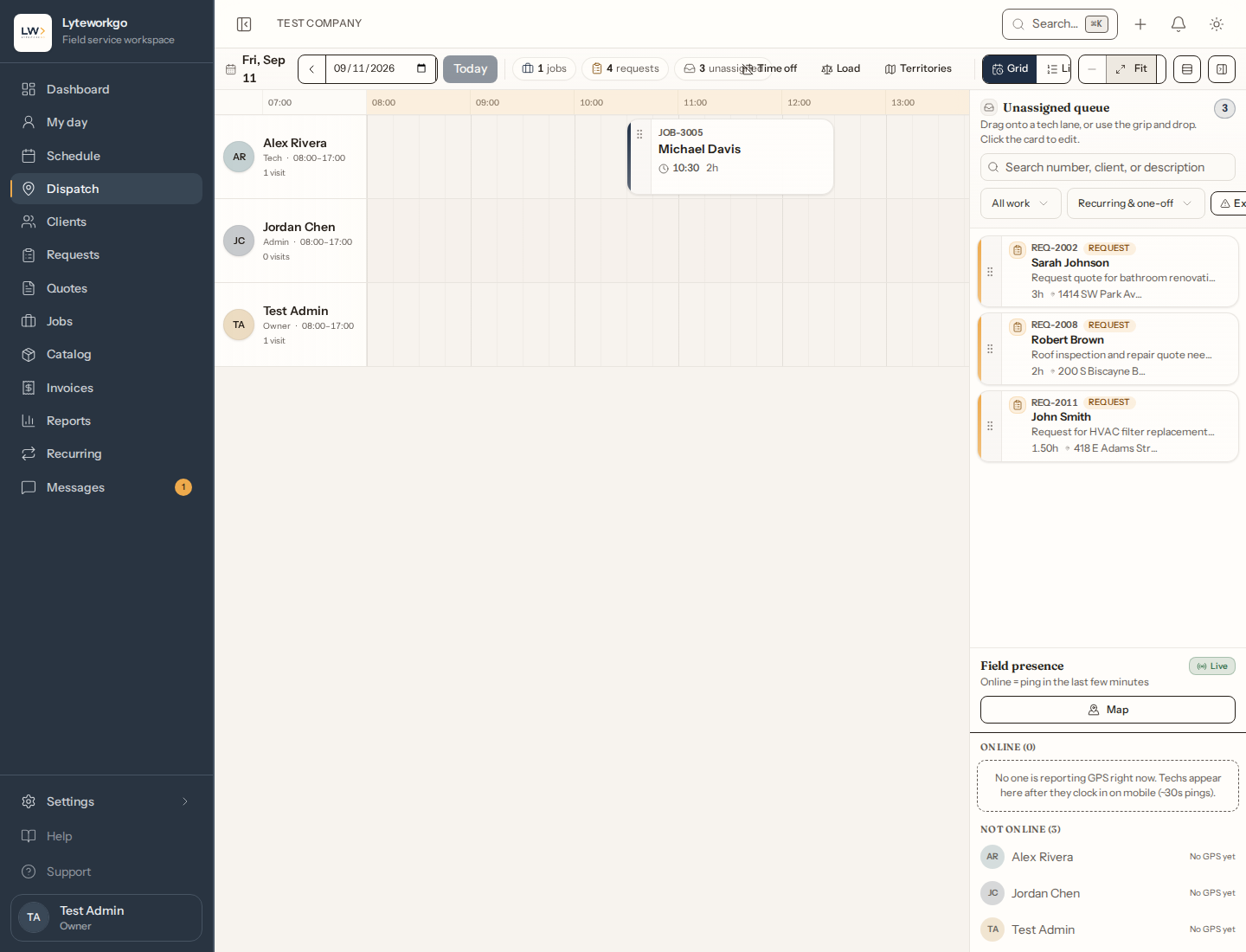
The day board — drop unassigned visits onto a technician’s timeline, then save.
Dispatch is the scheduling board for a single day. Use it when you want to see who is where, and drag work onto a tech’s lane.
Requires owner, admin or Dispatcher access. Office staff, Field techs and Billing do not open this board.
Not sold today. Dispatch isn't part of any size sold today. The board appears only in a workspace that has it. If you don't see it in the menu, your workspace doesn't have it, or your role doesn't open it.
Moving around the day
- Change the date (previous / today / next, or pick a date).
- Zoom the timeline or fit it to the window.
- Show or hide the unassigned list.
- Filter unassigned work: jobs vs requests, recurring vs one-off, exceptions only (visits that were supposed to book themselves and could not), or search by number, client, or description.
On a phone the same tools are laid out for a smaller screen.
Reading the unassigned list
Work that is promised to a time window — a week, a month, or a specific day — is grouped under that window, with the window that closes soonest at the top. Each group’s header says how much time is left (“3 days left”, “Closes today”), and each card carries a small chip with the same reading.
- A red “ran out” group is the one to deal with first: those visits were promised inside a window that has already passed, and they still have no day.
- Work with no window sits at the bottom. It has not been promised to any period — it is simply not scheduled yet.
- Recurring visits get their window from their plan automatically (a weekly plan promises “sometime that week”). One-off jobs get one if you set a default under Settings → System → Scheduling defaults, or set a window on the job page by hand.
If none of your work uses windows, the list looks exactly as it always has.
When the queue is full of exceptions
A recurring visit with auto-dispatch is supposed to book itself, so one sitting in this list is an exception, and its card says why (“Marco is on PTO from Aug 25 through Aug 27”). When there are any, a summary box at the top of the list adds them up by reason and technician — “9× Marco — on PTO…” — because twenty cards usually turn out to be one fact: somebody is away. Press Exceptions to see only those cards; each one still needs a decision, the summary just tells you why they are all here.
Assigning work
- Find a visit in the unassigned list (or on another tech).
- Drag it onto a technician’s lane at the right time. You can also resize how long it lasts.
- Changes sit as a draft on the board until you Save (or Discard).
Opening a visit lets you change the technician, date, and start time. For draft items you can also set a status (for example Ready or Scheduled on a job). You can unassign a visit back to the list.
Who should take this?
On an unassigned visit, the editor offers a Suggest button. Lyteworkgo ranks your technicians for that stop and day and explains each one in plain words — “Adds 12m of drive — 20m less than the next candidate”, “Their Tuesday is 45% booked” — with the best fit first. If nobody qualifies, it tells you exactly who was ruled out and why (“Marco and Dana on PTO, Sam is at capacity”) instead of showing an empty list. When live drive times are unavailable the distances are straight-line estimates, and a note says so. Picking a candidate only fills in the technician on the form — nothing is assigned until you save, and every scheduling rule still applies. (Workspaces with dispatch.)
If two visits overlap, Lyteworkgo may warn you. You can still save after you confirm — that is for “this is OK, I know they overlap.” Some conflicts cannot be saved; the message will say so.
Suggestions
You don’t have to ask. Lyteworkgo quietly reviews the unassigned list in the background and posts its best matches to the Suggestions panel beside the board — “REQ-104, Tue May 19 → Nina, adds 6m of drive”. Apply assigns it on the spot (the usual scheduling rules still apply — if the board has changed since the suggestion was made, you’ll be told instead). Dismiss hides it, and that pairing won’t be suggested again. Drive times marked est. are straight-line estimates. The panel only appears when there’s something to suggest. (Workspaces with dispatch.)
Lyteworkgo also looks at whole days. If a technician’s route could be driven in a better order, the panel offers a reorder — “Reordering 4 of 9 stops saves 1h 12m of driving” — and Apply renumbers that day for you. It never touches work you’ve already promised: days inside your schedule freeze horizon (Settings → Automations) are left alone entirely, finished stops stay where they are, and any visit with a set arrival time keeps it. Everything else just gets a better running order.
Recurring and the map
Jobs that come from a recurring plan are marked. Moving one of those may ask you to confirm.
The map shows technicians who are sharing their location, with your company address as the home pin.
The team’s load
The board shows one day’s lanes; Load (in the board’s toolbar, next to Time off) answers the period question — is the spread fair this week? will we clear the month? Pick a day, week, month, or custom range and you’ll see, per technician, committed hours against available hours, the stop count, how much work is promised to the period but not yet given a day, and any time off in the window (usually the explanation for an outlier). The heaviest load sorts to the top.
Lyteworkgo doesn’t rebalance the crew for you — who does what is your call — but these numbers are the same capacity math as the board’s over-capacity warning, so the two never disagree. A row noted as having days with “no working hours set” means totals are a lower bound: set working hours under Settings or on the technician’s profile to make them exact.