Quotes
Build an estimate, send it, collect a signature or acceptance, then turn it into a job (and optionally a deposit).
A quote is your written estimate. Customers can review it in email or a signing link, and in the customer portal.
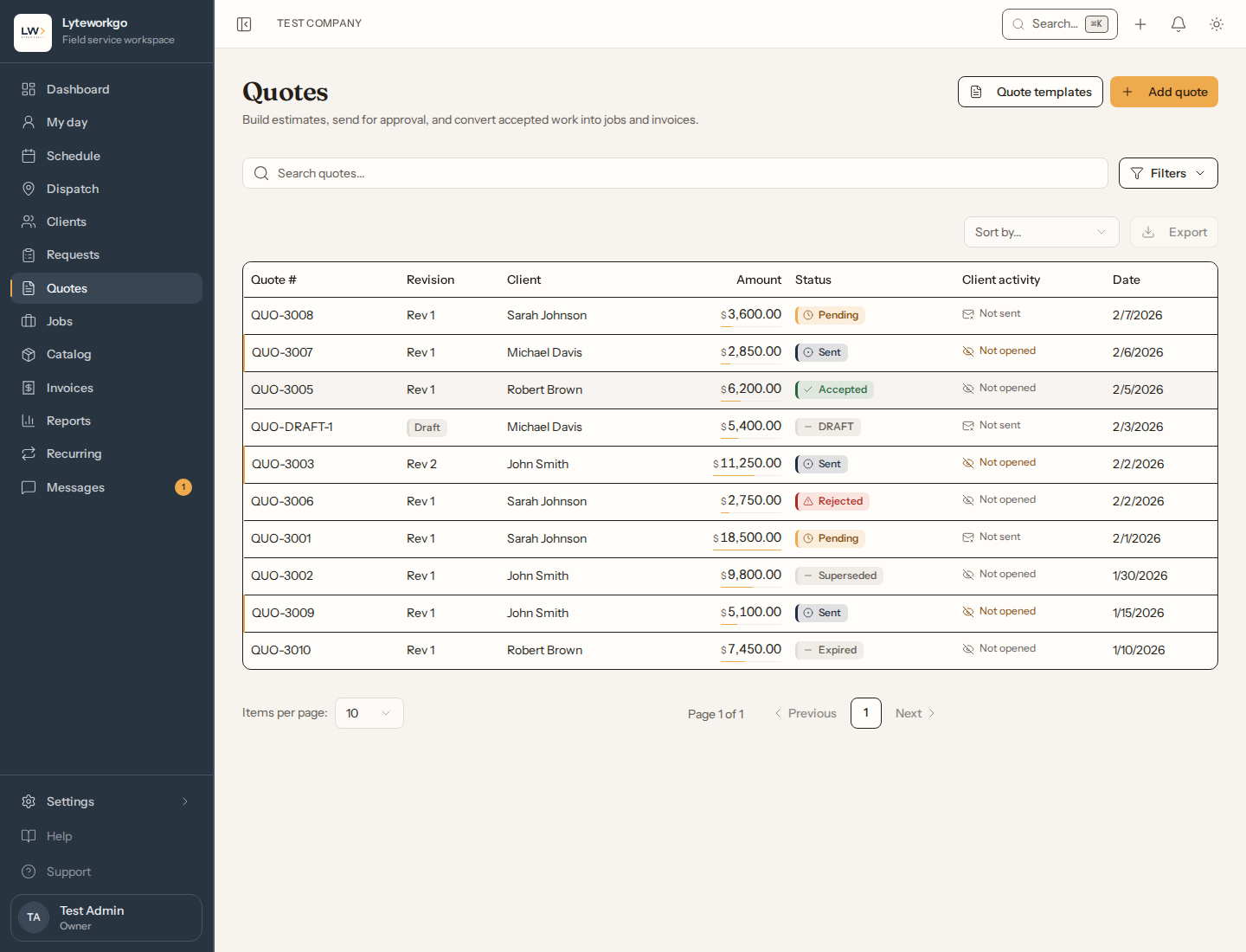
The list
Search and filter by status, date, client, assignee, and amount. Export needs a filter. Quote templates and Add quote are on this page.
Whose quotes you see. Owners, admins, Office staff and Billing see every quote. Billing's view is read-only, apart from creating an invoice or issuing a deposit from it and downloading the PDF. A Field tech sees the quotes assigned to them and the unassigned ones they created — plus, read-only, the quote a job of theirs came from — unless their access includes See everyone's work, not only their own. Export is for owners and admins, Billing by default, and Office staff with Export data turned on.
Statuses you will see
- Draft — still being written.
- Pending — built and ready to send. Not with the customer yet.
- Sent — waiting on the customer. Sending a quote (or requesting a signature) is what moves it from Pending to Sent.
- Accepted — they said yes.
- Rejected — they said no.
- Expired — you will rarely see this one. Passing the valid-until date does not move a quote here; nothing sets it automatically. Close a stale quote with Cancel instead.
- Cancelled — you pulled it.
- Converted — a job was created from it.
- Superseded — a newer revision replaced it.
Building a quote
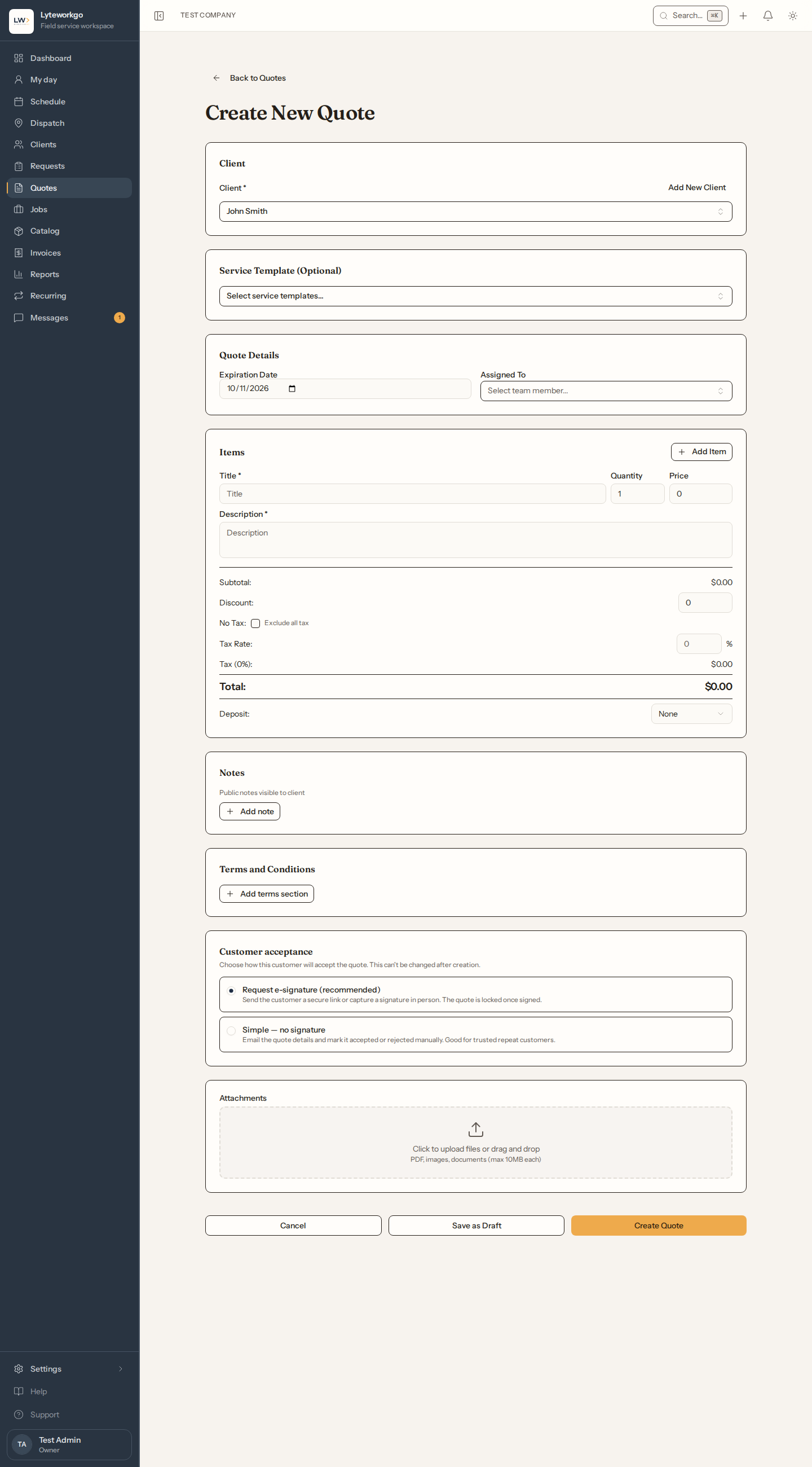
Choose the client, optionally add one or more service templates, then edit line items and sections. You can add a discount, set expiration, notes, and terms.
To offer a choice, such as Good, Better and Best, or extras the customer can add, tap Add option. See Quote options.
Deposit (none, a percent, or a fixed amount) can create a deposit invoice when the quote is accepted. It is issued automatically once Stripe is connected in Integrations, or when you click to issue it.
Who can set a deposit. Setting or changing a quote's deposit needs Create and send invoices as well as quote editing: owners and admins, Field techs by default, and Office staff with it turned on. Without it the deposit fields don't appear: a draft you promote keeps its deposit, and a duplicate you make starts with none. Once a quote is created, its deposit isn't edited on the quote page; saves and revisions keep it. Issuing the deposit invoice by hand needs the same switch, which Billing always has. A deposit set to be issued automatically still goes out when the quote is accepted, whoever accepts it.
Signature: require e-sign, or keep it simple, with no signature. A simple quote gives the customer no Accept button, in the email or the portal: when they say yes, you mark it accepted.
Save as Draft or create/send when it is ready.
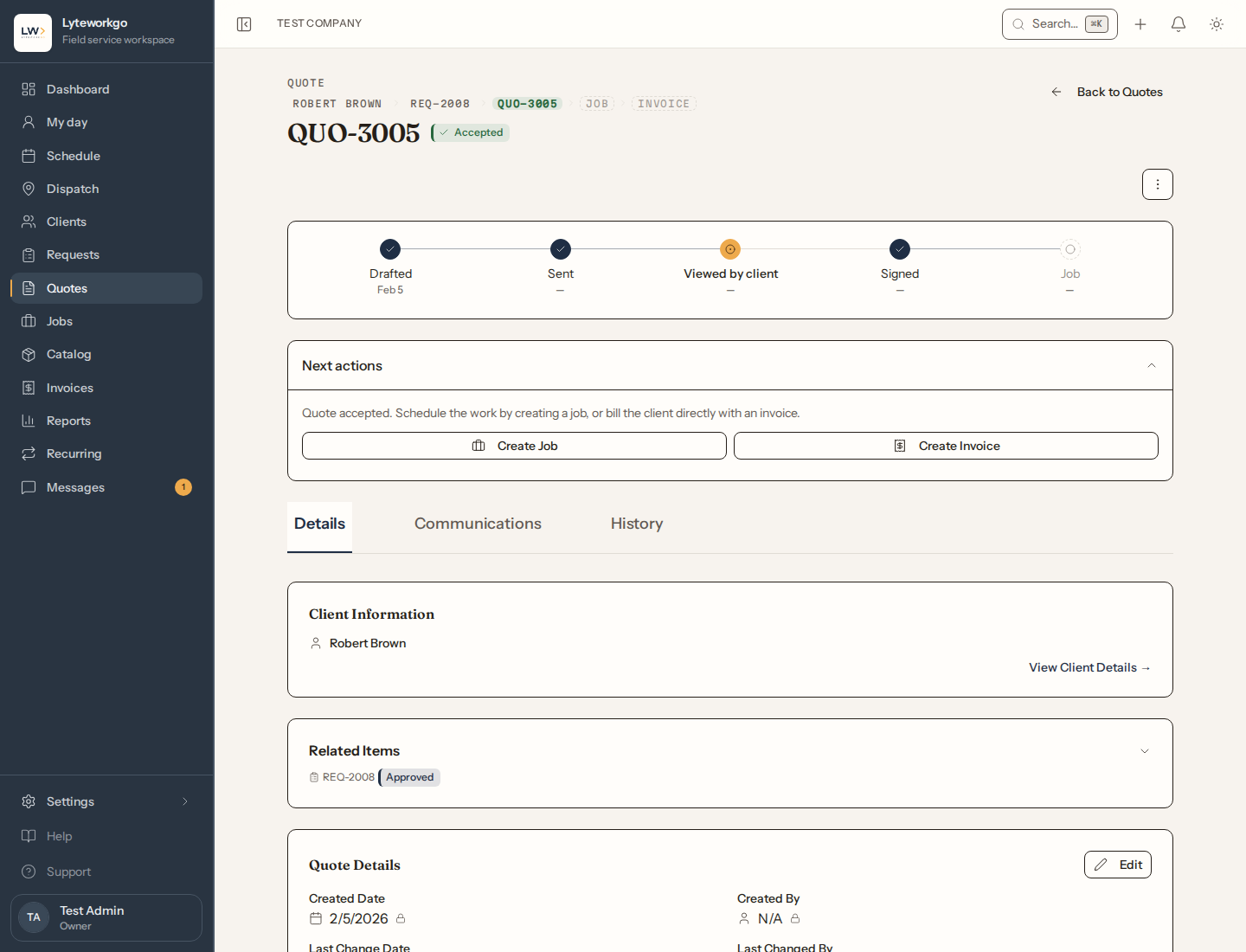
On a quote
Typical next steps:
- Send (or resend) the quote or signing link.
- Accept or Reject on the customer’s behalf if they called you. Accept appears on a sent quote that doesn’t require a signature. A quote that requires one is accepted only when it is signed, through their link or in person.
- Create job after acceptance.
- If it was rejected, create a revised quote — the revision starts fresh and supersedes the old one.
Other actions: duplicate, cancel, delete, capture a signature in person, and open or issue the deposit invoice.
Drafts can be promoted (turned into a real quote) or deleted.
Assigning, deleting and notes. Giving a quote to someone else, taking one from a colleague, or taking yourself off one needs Assign and reschedule other people's work. Owners and admins always have it and Office staff have it by default; Field techs and Billing aren't offered it. See Customizing access. Delete needs Delete requests, quotes and jobs: owners and admins always, Office staff when it is turned on. Without it, Delete draft still works on a draft you wrote that is still yours. A note can be deleted only by the person who wrote it, or by an owner or admin.
Templates
Reuse packages of line items, terms, and signature mode from Quote templates. Creating, editing and deleting a template needs owner or admin access, or Office staff with Edit the price book, templates and stock turned on.
What the expiration date does
The valid until date does not expire the quote or change its status. It drives two things:
- The dashboard’s Quotes tab lists still-unanswered quotes whose date has passed under expired, so you can chase or close them. That tab is for owners, admins and Billing, and Office staff with See reports turned on.
- The “expiring soon” reminders below, and it stops follow-up nudges that would land on or after that date.
When a quote is stale, Cancel it (or send a revision) — that is what closes it.
Automations you might notice
In Automations, two switches cover quotes, and both start on:
- Quote follow-ups: messages 48 hours, 7 days, and 14 days after you send a quote with no response.
- Quote expiring warnings: 3 days and 1 day before the expiration date.
An owner or admin can customize the email wording in Notifications.