Users
Invite teammates, choose their roles, fine-tune their access, and add room when your size is full.
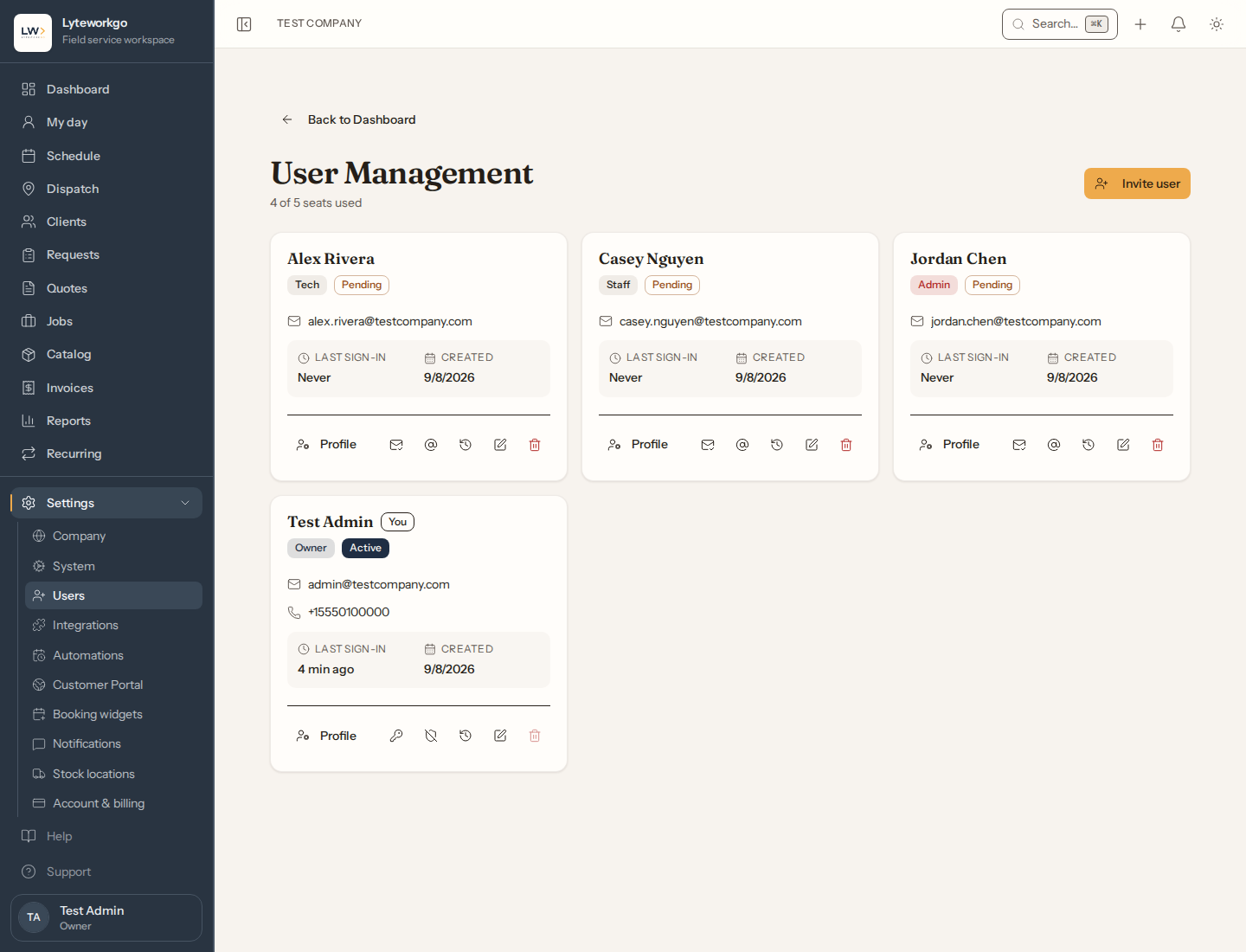
Settings → Users is your team list: who can sign in, what role each person has, and whether they are active.
Requires owner or admin access. Office staff, Field techs and Billing do not see Settings → Users.
Inviting someone
Invite user asks for their email, their name and their Role:
-
Admin — everything the owner can do, except the subscription and ownership. An admin sees Account & billing only once an owner makes them an authorized manager.
-
Job roles — tick one or more of Office staff, Field tech and Billing. Someone with two jobs can have both.
-
Helper — half a seat, for people who only do the work. They see their own visits and report on them, and never see prices, invoices or your client list. See Add helpers to your team.
Each role shows a one-line description before you pick it. They receive an email to set a password. What each role can do is on How Lyteworkgo is organized.
Nobody can be invited as an owner. To add another owner, invite them as an Admin, then make them an owner from Edit user — only an owner can do that, and an owner’s role can’t be changed afterwards, even by them. If you haven’t signed in within the last hour, Lyteworkgo first asks you to confirm it’s you.
Room
Everyone who can sign in takes room on your size: one seat each, whatever roles they hold. A helper takes half a seat. An invitation takes room from the moment it’s sent, until the person joins or you remove them. Deactivated and removed people take none.
The top of the page shows the room you use, such as In use: 5.5 seats of 7.5, adding (a helper counts as half a seat) when you have helpers. Removing someone frees their room for someone new. Your bill doesn’t change until an owner or authorized manager removes extras or moves to a smaller size (see Account & billing).
When your size is full
Adding someone never dead-ends. When an invitation, switching someone back on, or giving a helper another role needs more room than is free, the same screen shows the room step.
Owners and authorized managers are offered the room, with its monthly price:
- Add a seat, Add a helper or Add half a seat, while your size still takes extras. The step shows what your monthly bill becomes and what the rest of this month adds to your next invoice. Nothing is charged during the free trial.
- Move to the next size that fits (Move to Large, say), once your size takes no more extras. This is the only place Lyteworkgo offers a larger size.
- On Solo the step reads Solo is for one person. and offers Small.
One click adds the room, then sends the invitation or saves your change: Added a seat to your Small size and sent the invitation. If you haven’t signed in within the last hour, Lyteworkgo first asks you to confirm it’s you, with your authenticator app or a code by text or email, then carries on. If the room was added but the invitation didn’t send, the room stays and the message says why: Room added to your Small size, but the invitation didn’t send: …
Everyone else is told the size is full and who can add room: Your Small size is full. Ask Olive Owner to add room. When nobody you could invite fits, Invite user is turned off and the page says who to ask. When there’s room for a helper but not a person, the invite starts on Helper, and the step says There’s still room for a helper.
The setup wizard’s Invite your team step works the same way. It offers the same roles, Helper included, counts a helper as half a seat, and takes one room step for all the invitations you send together. It isn’t shown on Solo.
Size note. Solo is for one person: you hold the one seat and new work is assigned to you. Inviting anyone, a teammate or a helper, needs Small or larger. Field techs use the staff app in a web browser, on a phone or a computer. The Dispatcher role exists only in workspaces with dispatch, which isn't part of any size sold today.
Managing a user
On each person’s card you can:
- Open their Profile — the hours they work and their time off. Hours and time off apply only to people who can be booked for work (owners, admins, Field techs and helpers); for someone who is only Office staff or Billing, the page shows them but you can’t set hours or record time off. In a workspace with dispatch, the profile also holds skills, home base and lane colour. It stays readable after you deactivate someone.
- Edit user — their name, phone, roles, whether they are Active, whether they track time, and an optional last working day. The same dialog holds Customize access.
- Resend invite if they have not joined yet.
- Send a password reset.
- Reset two-factor if they are locked out of authenticator apps.
- View their account history: login-email changes, two-factor resets, and every change to their roles and to Customize access.
- Change login email — you re-enter your own password (and your authenticator code if you use one), the change is logged, and the person is signed out everywhere.
- Remove them from the team. They lose access and the room they took is freed. A removed user can’t be reactivated.
Deactivating or removing someone signs them out, and they can’t sign back in. If you reactivate them, they can sign in again, and they’ll confirm their device with a code the first time.
Owner accounts. An owner's account can be changed only by that owner — not by an admin, and not by another owner. Only an owner can make someone an owner, and nobody can deactivate or remove an owner. The same goes for an authorized manager: only an owner, or the person themselves, can change their account.
Authorized managers
An owner can make an Admin an authorized manager, so they can add room, change your size and update the card. Open Edit user on an active Admin who has joined and choose Make authorized manager. Neither of you needs an authenticator app. Their card then shows an Authorized manager badge.
- Changing their role away from Admin, or deactivating them, ends it. Edit user says so before you save.
- An owner’s Reset two-factor on them doesn’t end it.
- An owner can end it any time with End authorization.
Details: Account & billing → Authorized managers.
Roles
Change someone’s roles from Edit user, with the same Role choice as the invite.
- Owner and Admin stand alone. Office staff, Field tech and Billing combine, and the person gets everything their roles allow.
- Helper stands alone too. Someone who holds any other role takes a seat. A helper given another role takes half a seat more room, and a person made a helper frees half a seat. See Add helpers to your team.
- Nobody changes their own role. Your own row is locked; another admin or the owner can change yours.
- Nobody can change an owner’s role — not an admin, another owner, or the owner themselves.
- A role your subscription no longer includes (while it has lapsed) stays ticked in Edit user, so you can see it and take it off. Once removed, it can’t be added back.
When a role change takes effect. Within about 30 seconds. If it changes their main role — the first of Owner, Admin, Field tech, Billing and Office staff that they hold — they are also signed out, and sign back in with their new access. Any other role change signs nobody out.
Customizing access
Each job role starts with defaults that suit the job. To adjust them for one person, open Edit user and expand Customize access. It lists the switches their roles offer, each with a line saying whose default it is — Default for Field tech, say — or Off by default. Change the ones you want and Save changes. Reset to role defaults puts every switch back to its default.
The switches:
- See everyone’s work, not only their own — for Field techs, who see only their own work until it is on. Office staff and Billing always see everyone’s.
- Assign and reschedule other people’s work — on by default for Office staff. It also opens Team availability. Without it, a person can still reschedule their own work, create work assigned to themselves, and take on unassigned work that no one else owns, but can’t hand their work to someone else or take themselves off it. Jobs still go only to people who can be booked for work, so someone who is only Office staff takes on requests and quotes this way, not jobs.
- Approve timesheets — off by default for Office staff and Billing; not offered to Field techs. Lets them check, fix, approve and reopen everyone’s timesheets, but never their own week. Owners and admins always can.
- Delete requests, quotes and jobs — off by default for Office staff. Without it, a person can still discard drafts they wrote that are still theirs.
- See invoices and payments — on by default for Field techs (the invoices on their own jobs), off for Office staff. Billing always has it.
- Create and send invoices — on by default for Field techs, off for Office staff. Needs See invoices and payments.
- Take payments — on by default for Field techs, off for Office staff. Needs See invoices and payments.
- Issue refunds — on by default for Billing, off for Office staff and Field techs. Needs Take payments.
- See costs and margins — on by default for Billing, off for Field techs and Office staff.
- See reports — off by default for Office staff; Billing always has it. Needs See invoices and payments.
- Export data — on by default for Billing, off for Office staff.
- Edit the price book, templates and stock — off by default for Office staff.
- Use Portal Messages — off by default for Field techs and Billing; Office staff always have it.
Only the switches a person’s roles offer are listed. A switch that needs another one stays off until that one is on, and says so — Turn on “See invoices and payments” first. Turning a switch off also turns off the switches that need it.
- Whose access you can customize. Office staff, Field techs and Billing: owners and admins already have everything a switch can turn on. Customize access never appears on your own account, and it disappears while your subscription has lapsed.
- Customized. When someone’s access differs from their roles’ defaults, their card shows a Customized badge, and so does the closed Customize access panel.
- Changing roles later. Switches you set stay set as long as the new roles still offer them and the switches they need are still on.
- History. Every change is recorded in their account history, as Roles changed or Access changed, with what changed.
- When it takes effect. Within about 30 seconds. Changing a switch never signs anyone out.
Tracks time
Tracks time in Edit user decides whether someone has the time clock — Shows the time clock for this person. It is on for everyone you invite, helpers included. The owner is the exception: off on Small and larger, where the owner usually runs the office, and on for Solo, where the owner does the work. A later change of size doesn’t move it.
- Turn it off for someone who shouldn’t clock hours. If their timer is running, it stops at that moment. Their past time stays, and still shows on Timesheets.
- Only the owner can change the owner’s own setting. An owner on Small or larger who goes out on jobs turns their own clock on here.
- Nobody turns their own clock on or off from their account settings.
Labor cost rates
Labor cost rate in Edit user sets what an hour of that person’s time costs your business, for job profit. Leave it blank to use the company default from Settings → System; the field tells you what the default is, or that there isn’t one. A new rate applies to time logged from then on; time already logged keeps its rate. You see this field only if you can manage users and see costs, and not for someone who is deactivated.
If the rate can’t be saved, the dialog stays open and says so under the field; the rest of your changes are already saved.
When someone leaves
When someone hands in their notice, set a Last working day in Edit user. It does not deactivate them: they keep working, and can be scheduled up to and including that day. Clear the date to call a departure off.
See what they are still holding (under the date) opens a page of everything still assigned to them after that day: Recurring plans, Booked visits, Requests (with a day or without one), and work Assigned but never scheduled. Nothing moves unless you choose — every row starts as Leave as is — and a job can only go to someone who can be booked for work.
Deactivating or removing someone is never blocked by open work. Remove someone who still holds work and the message confirming it offers Reassign, which opens the same page. Whenever someone is given a last working day, deactivated or removed while still holding work, owners and admins get a notification that links there too.