Catalog
Your price book of materials, tools, and equipment — used on jobs and quotes so names and costs stay consistent, and where you track how much of each you have.
The Catalog is the shared list of things you buy, carry, or bill: parts, tools, and equipment. Pick items from here instead of typing a new name every time.
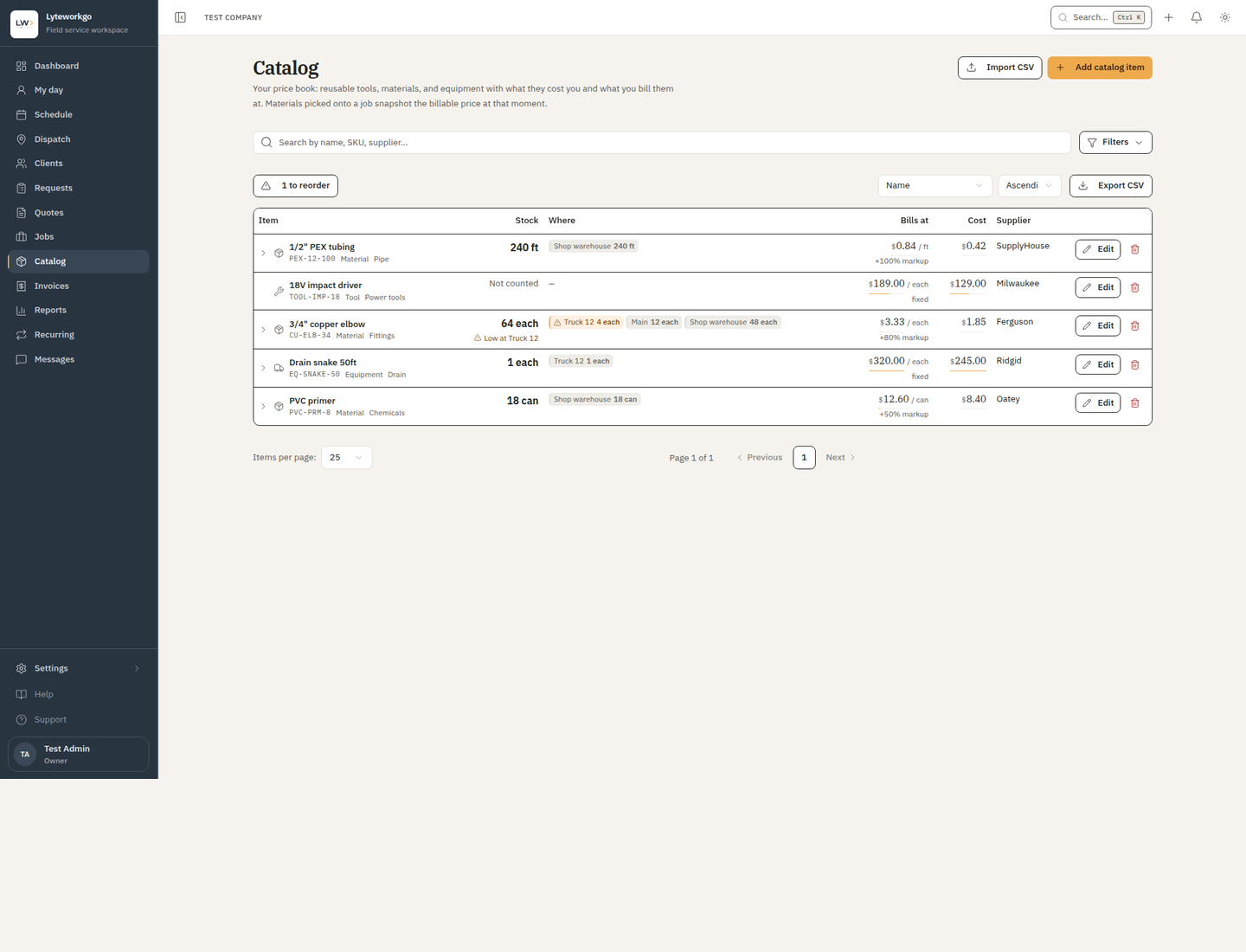
Finding items
Search, then filter by:
- Kind — Material, Tool, or Equipment.
- Category and supplier.
- Active vs archived.
- Stock → Low stock — only the items at or below the level you set. See Stock below.
If anything is running low, the list shows a “N to reorder” button above it. Pressing it does the same as the filter and puts the shortest items first, so the list reads as a shopping order. It only appears when something actually is low.
Change the sort to scan by name, category, price or cost — or by Stock (lowest first), which ranks by what you can still promise, with items you have never counted last.
Costs are not for everyone. Unit cost, markup and supplier — and the supplier filter and cost sort — show only for people who can see costs: owners and admins, Billing by default, and Field techs and Office staff with See costs and margins turned on. Everyone sees the price you bill.
Adding and editing
Add item opens a form: type, name, SKU, category, unit (each, hour, foot, …), unit cost, supplier, whether it is active, and an optional Opening count.
Opening count is how many you have on the shelf right now. Fill it in and the item starts counted at that number; leave it blank and the item is simply not counted yet — which is a different thing from counted at zero. It only appears when you are adding an item, because once one exists its stock is managed on that item’s stock page.
Click a row to open its stock page. Edit (the pencil) opens the item form. Delete asks you to confirm. Archive (inactive) if you want to keep history but hide it from pickers. An item that still has stock on hand, or held for a job, can’t be deleted: once deleted, nothing could count or move that stock again. Use it up or record it as waste first, or archive the item instead.
Who can change the catalog. Adding, editing, deleting and importing items needs owner or admin access, or Office staff with Edit the price book, templates and stock turned on. Field techs and Billing use the catalog but don't change it.
Import and export
Export CSV downloads the list. Import CSV is the way to load many items at once (for example from a supplier spreadsheet). Follow the column headers in the import dialog.
Who can export. Owners and admins, Billing by default, and Office staff with Export data turned on.
Stock
The catalog can also track how much you have, not just what things cost.
The list itself answers how many and where. Each row shows what you can still promise — the quantity left after anything already set aside for jobs in progress — with the shelf count beneath it when those two differ, and a short line saying how to read it: reorder at 2 ea, Low at Truck 1, or Used more than counted — adjust. An item you have never counted reads Not counted, which is not the same as counted at zero.
If you keep stock in more than one place, the list also shows a Where column and each row opens to a full breakdown by location.
To change a count, open the item — its stock page. Counts are never edited in the list: every change is recorded as a movement with a reason and a name against it, so the history can always explain the number.
Anyone who can see the catalog can read the counts. Recording a movement, setting a reorder point and transferring stock need owner or admin access, or Office staff with Edit the price book, templates and stock turned on. Field techs and Billing see the numbers but can't change them.
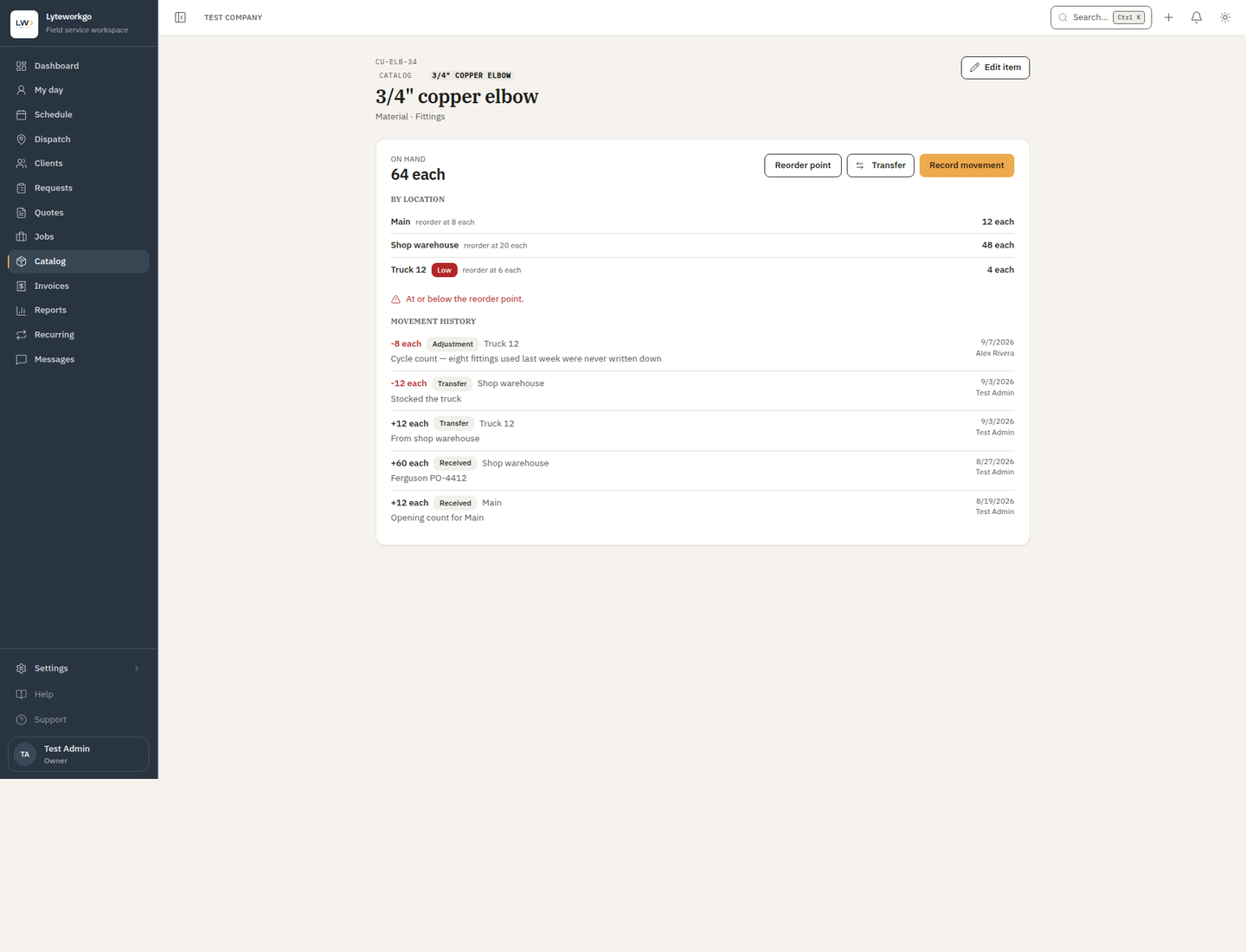
On hand, available, and not counted
- On hand — what is physically there.
- Available — on hand minus anything already promised to a job in progress. It only appears when the two numbers differ, with a line telling you how much is held.
- Not counted — nobody has ever counted this item. That is not the same as zero, and the app keeps them apart everywhere: “we have never counted this” and “we counted and there are none” are different answers.
An item starts counting itself the first time anything touches its stock: an Opening count when you add it, a movement you record, a reorder point you set — or the first time it goes on a job as a material. That last one surprises people: the job holds parts against a count nobody has taken, so the item stops saying Not counted and can read below zero straight away. Count what is on the shelf and record an Adjustment to put it right.
Recording what changed
Record movement asks for a reason, How many, and an optional note. Once you have made a location of your own it asks which location too, even if that is the only one you have — see below.
- Received — a delivery arrived. It always adds to the count.
- Adjustment — a count correction, and the only reason that asks for a direction (Added or Removed). An adjustment has to say why; the app refuses one with an empty note, because a correction with no explanation is indistinguishable from a mistake when somebody reads the history back later.
- Waste — damaged, lost, or written off. It always takes from the count.
There is no box anywhere that sets a count to a number, and that is deliberate. Every figure is the sum of the movements behind it, so it can always be explained — who changed it, when, by how much, and why. A quantity you could overwrite would be the one number in the system nobody could account for.
Opening count on Add item is not an exception to that, it is the rule applied earlier: the number you type is recorded as a Received movement in your name the moment the item saves, so it reads back in the history like any other change.
For the same reason the history is append-only: you cannot edit or delete a movement you have already recorded. Got one wrong? Record an Adjustment the other way and say what happened. The mistake and the correction both stay visible, which is the point.
Where stock is kept
Stock always has somewhere to be. If you never say where, the app makes that somewhere for you the first time it needs one — a default location called Main — and until you make a location of your own, stock is simply “what the company has” and the per-location controls below stay out of your way.
Make your own location first and Main may never appear at all: the app only creates it when something has to fall back on it. So a workspace that sets up a vehicle before counting anything sees just that vehicle in the list, which is correct rather than a missing row.
Settings → Stock locations is the list, and owners and admins can open it. Each location has a name and, unless it is the default, a kind — Vehicle (a truck, ute or trailer), Warehouse (a yard or a shop), or Other — and, optionally, the teammate it belongs to. The default deliberately has neither, which is what stops a job’s materials ever resolving to it by accident.
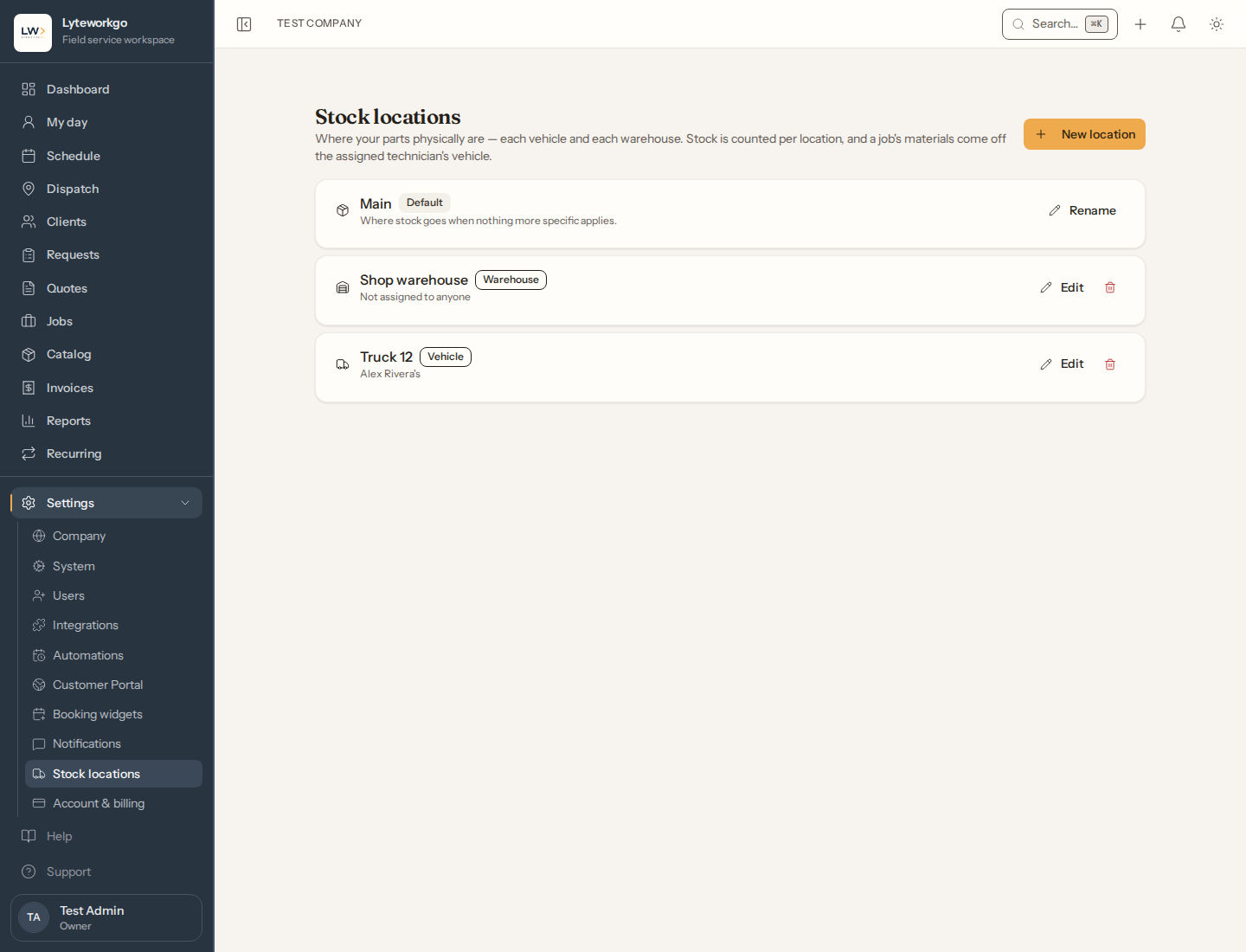
Assigning a vehicle to a teammate is the setting that does the most work. When a job’s materials come off the shelf, the app looks for a vehicle assigned to that job’s technician and takes the parts from there; if there is none, they come off the default. So the truck that actually carried the parts is the one whose count goes down. Hand a vehicle to somebody else, or take it back, and the parts already reserved on their in-flight jobs move with it — you do not have to fix anything up by hand.
Renaming a location never changes where stock draws from. If one person somehow has two vehicles, the older one wins. And nothing breaks when the teammate a vehicle belongs to leaves. Deactivate them and the vehicle carries on reading as theirs. Remove them and it reads Assigned to a removed teammate — it keeps its stock either way, and you hand it to somebody else from the same Edit sheet.
Retiring a location stops it being somewhere you can put stock, and its history stays in the ledger. A location that still holds stock is refused, in the dialog rather than after the fact — move that stock somewhere else first. The default is not offered at all: it is where stock goes when nobody says otherwise, so there is no button to retire it.
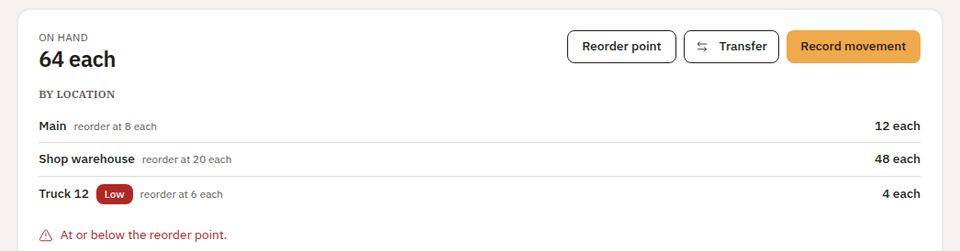
Once you have a location of your own, the stock page grows a By location breakdown under the totals: what is on hand in each place, how much of it is free where a job is holding some, and a Low badge on any location at or below its own threshold. A location the item has never been in reads as a dash, not a zero. Setting a reorder point asks which location too — each one keeps its own number, so a truck that runs out is low even when the yard is full — and the movement history names the place each change happened.
Moving stock between locations
Transfer takes stock from one location to another — From, To, How many, and an optional note. The company total does not change, because a transfer is written as a matched pair: one movement out of the first location and one into the second.
The button appears once you have two places to move between. That is the only condition.
You can only move what the place you are taking from actually has free. The From list shows that figure beside each location, and the form tells you the most you can move before you type anything. Two things can make it smaller than what is on the shelf: nothing has ever been counted there, or some of what is there is already promised to a job in progress — finish or reassign that job and the parts free up. Moving everything a location has free is fine; that is how you empty a truck before retiring it.
That pairing is why transfer is not one of the reasons on the movement form. A single one-sided entry would create or destroy stock while looking like it had moved it, so moving stock has its own button instead.
Reorder points
Reorder point is the level you want to be warned at. Set it and the item picks up a Low badge in the catalog list whenever available stock is at or below it. The reorder point belongs to the place the stock is in, so an item flags as low when anywhere it is kept runs down — not only when the company total does.
Nothing is sent to you — no email, no text, no alert. The badge and the filter below are where low stock shows up, so this is something you look at rather than something that interrupts you.
Setting a reorder point starts counting the item at zero, so it reads as low straight away until you record what is actually there.
To work your reorder list, filter the catalog by Stock → Low stock. Export CSV respects that filter, so you get a file of just those items: names and SKUs, plus suppliers and costs if you can see costs. It’s ready to price up. The file does not include quantities: the catalog CSV is the same one you import from, and quantities are never importable because every change to a count has to be a movement.
Jobs draw stock down for you
Materials you add to a job from the catalog come off the count on their own, in two steps:
- While the job is still open — whatever its status — the parts are held: still on hand, but no longer available, so the same box of fittings does not get promised to Thursday’s job as well.
- When you complete the job, the hold becomes a real deduction and on hand drops.
The parts come off the vehicle assigned to the job’s technician if there is one, and off your default location otherwise.
Cancel or delete the job and the hold is released. Take the part off the job — remove the line, or set it to zero — and its hold goes with it. Nothing else ends a hold: it stays while the job sits, however long that is. You do not record anything by hand for job materials — doing so would count them twice, which is why used on job is not one of the reasons you can pick.
Two things do not draw stock down, and both are deliberate:
- A job that was copied rather than worked. Duplicating a job, materialising a template, or a recurring plan generating next month’s visits all carry the material lines across without holding anything. Planning does not reserve stock; recording does. The hold appears the next time somebody saves that job — or, if nobody does, when they complete it.
- A material you typed instead of picking. A free-text line has no catalog item behind it, so there is nothing to count against.
Going below zero
The app will let a count go negative, and shows it in red with a note that more has been used than the count said was there. It is not an error to fix in the app — it means the shelf and the record disagree. Count what is actually there and record an Adjustment to match.
Refusing the movement instead would only teach people to stop recording, and a count nobody updates is worse than one that is temporarily wrong.
Where catalog items show up
When you build a job or quote, you can add tools and materials from this list. Keeping the catalog tidy means invoices and job costing stay consistent.