Requests
Intake for new work — capture what the customer needs, approve it, schedule it, then turn it into a quote or job.
A request is “someone needs something.” It is the front door for new work, including items that come from your website booking form or the customer portal.
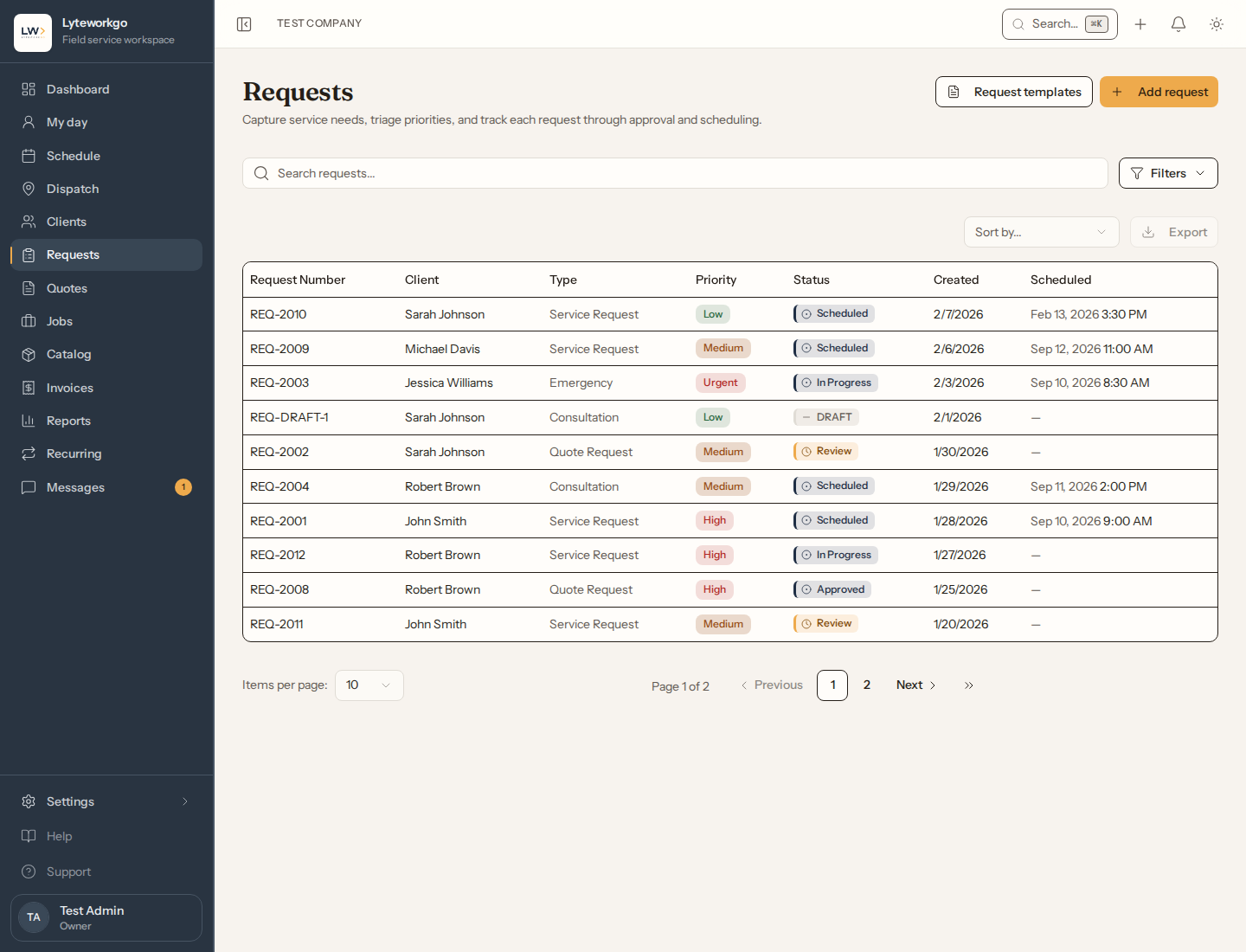
The list
Search and filter by status, priority, type, date, scheduled vs unscheduled, client, and assignee. Export is available once a filter is set. Request templates opens reusable defaults. Add request starts a new one.
Whose requests you see. Owners, admins, Office staff and Billing see every request. Billing's view is read-only, apart from creating an invoice from a completed request. A Field tech sees the requests assigned to them and the unassigned ones they created — plus, read-only, the request a job or quote of theirs came from — unless their access includes See everyone's work, not only their own. Export is for owners and admins, Billing by default, and Office staff with Export data turned on.
Statuses you will see
- Draft — started but not submitted yet.
- Review — waiting for someone to approve.
- Approved — ready to schedule.
- Rejected — will not proceed.
- Scheduled — appointment is on the calendar.
- In progress — work has started.
- Completed — done.
Priorities: Low, Medium, High, Urgent. Types include consultation, quote request, service request, and emergency.
A request a customer sends from the customer portal arrives as a service request, with the urgency they picked as its priority. The portal offers the same four words, so a customer’s Urgent is your Urgent.
Creating a request
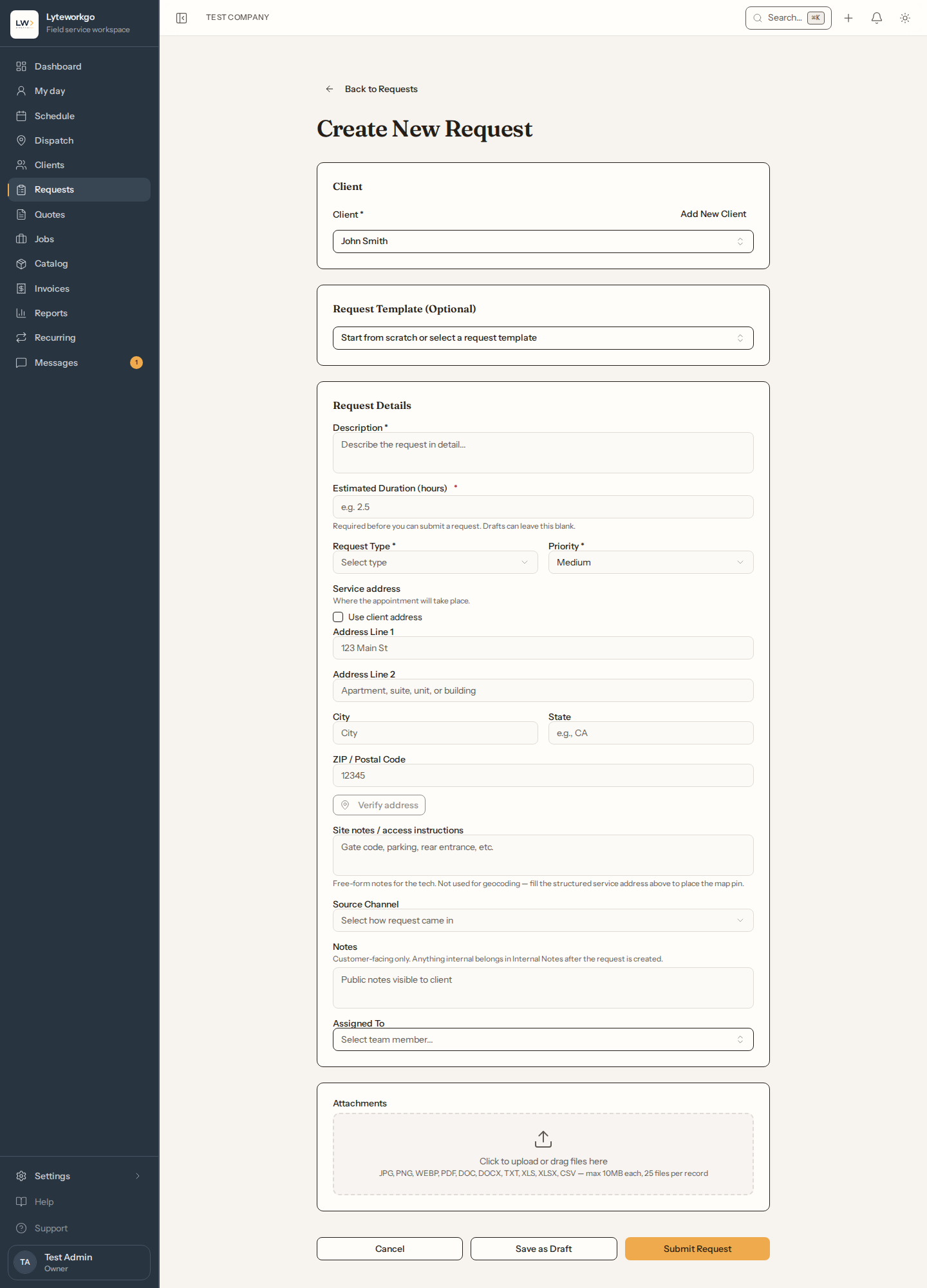
Pick (or create) a client, optionally start from a template, then fill in the description, type, priority, service address, notes, who it is assigned to, and any files.
For the service address, pick the client’s mailing address, one of their saved service addresses (their default, if they have one, is picked for you), or New address… to type one. A saved address needs no checking again.
Save as Draft if you are not ready. Submitting a request with nobody assigned may warn you — when you’re the only person on your account (helpers aside), Lyteworkgo assigns it to you automatically.
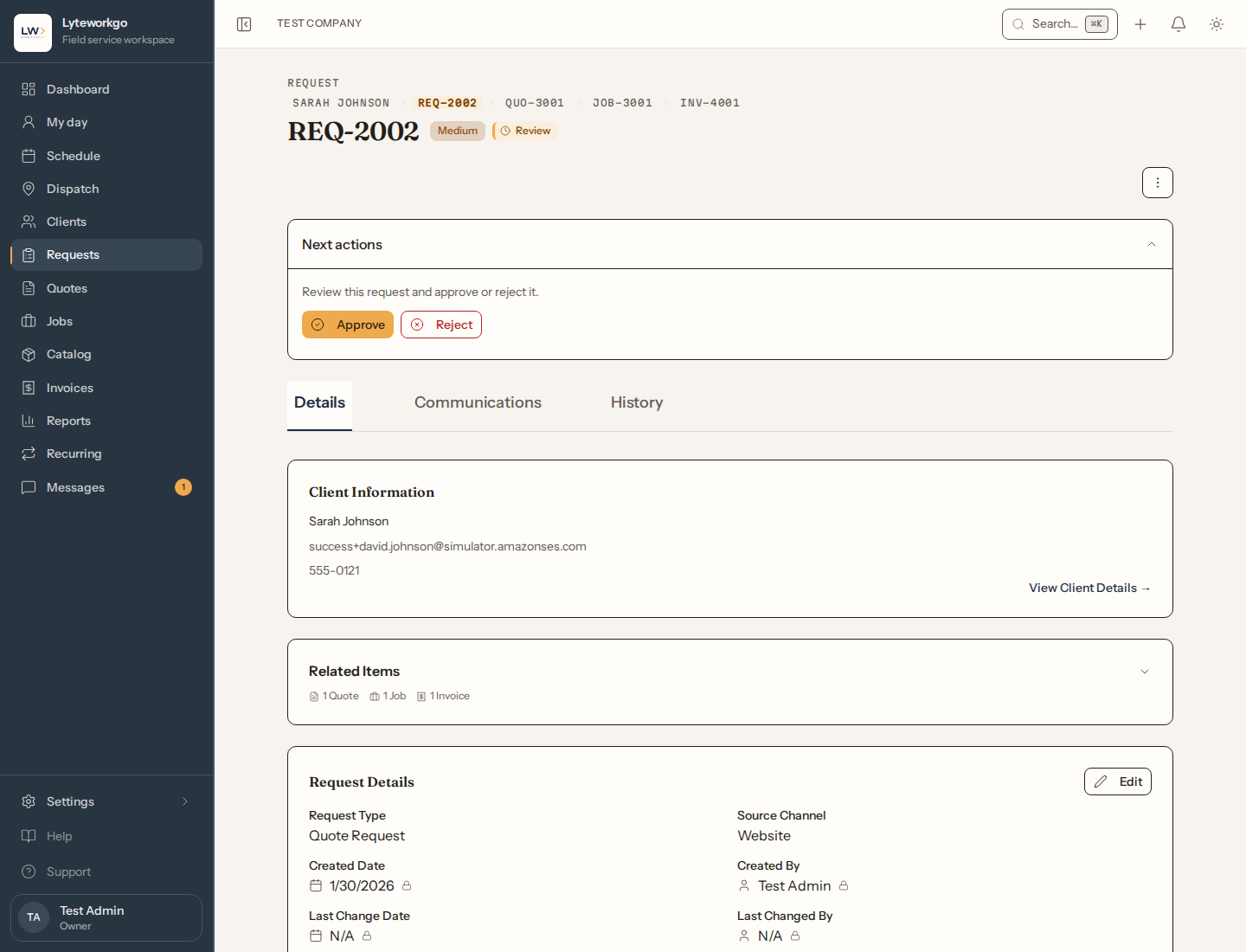
On a request
The next action changes with status, for example:
- Submit a draft for review.
- Approve or Reject.
- Schedule (or reschedule / cancel) the appointment — you can notify the customer.
- On the way — text the customer that someone is setting off. Stays available once the visit is in progress.
- Start, then Complete.
- Create quote, job, or invoice when that is the next step.
You can also send an appointment reminder, edit details, change the assignee, add internal notes, time and files, or delete the request.
Assigning, deleting and notes. Giving a request to someone else, taking one from a colleague, taking yourself off one, or moving someone else's appointment needs Assign and reschedule other people's work. Owners and admins always have it and Office staff have it by default; Field techs and Billing aren't offered it. See Customizing access. Delete needs Delete requests, quotes and jobs: owners and admins always, Office staff when it is turned on. Without it, Delete draft still works on a draft you wrote that is still yours. A note can be deleted, and a time entry edited or deleted, only by the person who added it, or by an owner or admin.
The “on the way” text is SMS only, with no email version, so it can’t go to a client with no phone number on file or with text notifications turned off. It is not sent outside the customer’s local texting hours, and unlike an appointment reminder it is not held until morning: “we’re on our way” is not true an hour later.
Templates
Request templates store defaults you reuse (type, priority, notes). Open them from the list. Create or delete templates there — that needs owner or admin access, or Office staff with Edit the price book, templates and stock turned on.
Automations you might notice
If appointment reminders are on in Automations, customers can get a message when the appointment enters the freeze horizon (default 7 days out) and 24 hours before a scheduled request.
Related
- Clients · Quotes · Jobs · Booking widgets