My day
Your own stops for today and the week ahead, plus your time off — for everyone who can be booked for work.
My day is your own work, and only yours — no one else’s stops, and no company totals.
Who has My day. Everyone who can be booked for work except helpers: owners, admins and Field techs. A helper has My visits instead. A Field tech on their own lands here after signing in. Everyone else lands on the company-wide Dashboard, and those who can be booked for work open My day from the left menu whenever they want just their own stops — owners, admins, anyone who is a Field tech and Office staff or Billing, and a Field tech whose access includes See everyone’s work, not only their own. Office staff and Billing on their own can’t be given jobs, so they have no My day; a request assigned to one of them is on the Requests list instead.
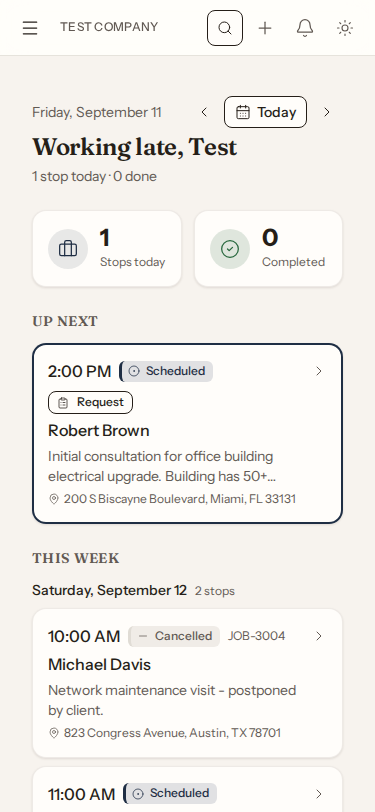
What you’ll see
- Stops today / Completed — two tiles counting your day.
- Up next — the stop to head to now. A stop you’ve started (In Progress) always wins; otherwise it is your earliest open stop.
- Coming up today and Completed today — the rest of the day, in driving order.
- This week — your stops for the next seven days, grouped by day.
Tap any card to open the job or request it belongs to.
Timing your day
If you track time, the top of My day shows your hours for today, and each open stop for today under Up next and Coming up today has Start (time the work) and Driving (time the drive there). While your timer is on a stop, the card shows it running, with Back to general and Stop. Starting one stop’s timer stops whatever was running before, so you never have to stop it first.
Only today’s stops have timers. A stop later in the week, or any stop while you’ve picked another day, has none. See Time tracking.
Completing a job at the house
A job stop that is scheduled or in progress has a Complete button — on Up next and Coming up today. It opens the completion screen: the work done, the checklist, before and after photos, your notes, and the customer’s signature, which they can give right there on your phone. You don’t need to start the job first. See Completing a job and customer sign-off.
You can only complete your own stops from My day. Once it’s done, the stop moves to Completed today, where Bill it appears if you can create invoices.
If your timer is on that job, Complete switches it to general time. You stay on the clock, ready for the next stop.
How times work
- A time like 9:00 AM is a booked time.
- ~9:00 AM with estimated is the route’s projection for a stop without a booked time — it can shift as the day is rescheduled.
- Anytime means the stop has a day but no time yet.
When the office changes your work
When someone else gives you a job or request, takes you off one, or changes its day, time, arrival window, address, site note or instructions, or cancels it, you hear about it right away: a message pops up, the bell counts it, and My day updates by itself. The stop shows Changed with the time and what changed — for example Time 1:00 PM → 2:00 PM · by Ana.
Open the job or request and tap Got it once you’ve read it. That clears the mark, and the office sees you saw it. Changes you make yourself, and small edits like the estimated length, line items or notes, don’t notify you.
A change to a stop starting within 24 hours is also emailed to you. You can turn that email off under Settings → Account → Notifications (Changes to my work).
Stops are jobs or requests
Most stops are job visits. A stop marked Request is a service request assigned to you — an assessment or first visit that has not become a job yet. It opens the request page instead of a job page.
Getting paid from your day
If you can see invoices, a job stop shows its invoice’s status (and its total, when you can open that invoice), and at most one button beneath it:
- Collect — on a job whose invoice is waiting for payment. It opens the invoice, where you can record cash or a check, or share a payment link when card payments are connected. Needs Take payments.
- Bill it — on a completed job that has no invoice yet, or only a draft. It opens the draft if there is one, or starts the invoice from the job. Needs Create and send invoices.
A request stop never shows an invoice. Field techs have See invoices and payments, Create and send invoices and Take payments by default; owners and admins always do. See Customizing access.
My time off
The My time off button opens your own absences: request a day (or part of one) away, see what the office decided, and withdraw a request you no longer need. Requests are visible to the office right away and the office confirms them. One exception is immediate: reporting sick for today takes effect at once, so the schedule stops offering you work.
Who answers your request. The people who schedule the team — owners, admins, and Office staff unless Assign and reschedule other people's work was turned off for them — get a notification and answer it on Team availability. Nobody answers their own request except the owner, who can also record their own time off.