Dashboard
The company-wide home screen — today’s work, quotes that need a nudge, and invoices waiting on payment.
Open Dashboard from the left menu. It is the first page after you sign in for everyone who sees the whole company’s work: owners, admins, Office staff and Billing. A Field tech on their own lands on My day instead — unless their access includes See everyone’s work, not only their own, which brings them here too. Anyone who can be booked for work (owners, admins and Field techs) can also open My day from the left menu for just their own stops. A helper never sees the Dashboard: they land on My visits.
Setup checklist
After you finish the setup wizard, a Get set up card sits at the top of the dashboard, above the tabs. It lists the steps between signing up and your first payment, shows how far along you are (“2 of 6 done”), and links each step straight to the page where you do it:
- Connect Stripe to get paid online. Stripe’s review can take a day or two, so start early. While Stripe is still checking your details the step reads Finish on Stripe.
- Add your prices. The starter catalog has no prices, so price at least one item.
- Add your clients. Add one, or import a spreadsheet.
- Send your first quote. A quote your customer signs in person counts too.
- Send your first invoice.
- Get your first payment. Online payments and payments you record both count.
Two more steps are optional: Add your logo and Invite your team.
You never tick a step yourself. Each one ticks itself as soon as the real work exists, for example when Stripe finishes your account or a client is saved. Do the steps in any order; the button is always on the first one still to do. Once the six steps are done, the card reads You’re set up. Your first payment is in. It goes away by itself when every step on it is done.
Hide removes the card for everyone in your workspace. Changed your mind? Choose Undo in the message that appears.
On a phone the card shows only your next step. Tap Show all steps to see the rest.
Who sees it. Owners and admins. Nobody else sees the card.
Size note. Solo is for one person, so the checklist has no Invite your team step there.
What you’ll see
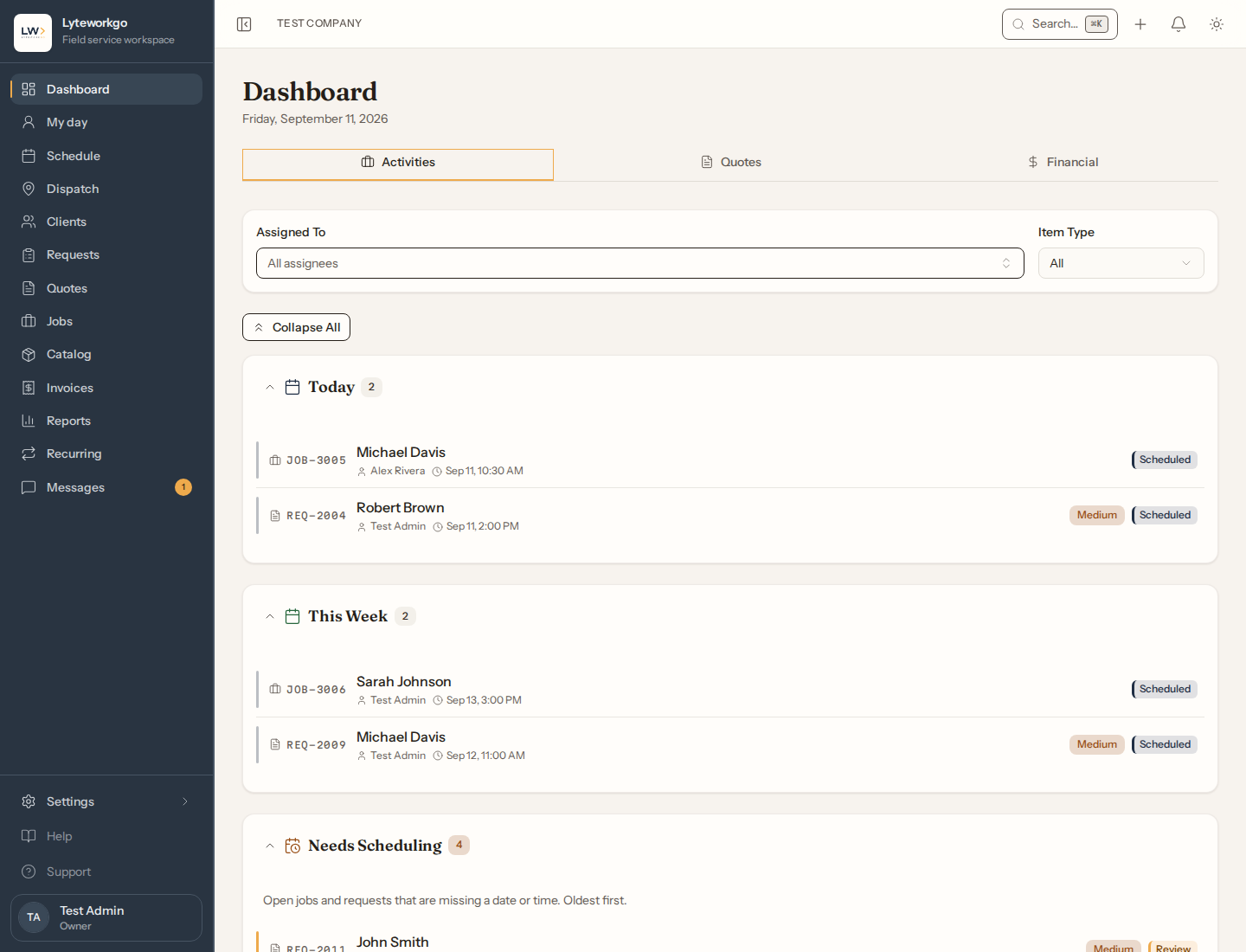
The dashboard has up to three tabs:
- Activities — jobs and requests grouped by time: Today, This Week, Needs Scheduling (no day set yet) and Missed (their date has passed and they aren’t finished).
- Quotes — quotes that were just accepted or rejected, still waiting, expiring soon, or already expired.
- Financial — invoices that are overdue (remaining balance on past-due bills), due soon, or still unpaid.
You can filter Activities by who is assigned and by Jobs, Requests, or both. Use Expand all / Collapse all to open or close every queue at once.
Click any card to open that job, request, quote, or invoice.
Quotes and Financial tabs
These two tabs summarize money and estimates.
From Quotes you can jump to all quotes, or, if you can create jobs, start a job from a recently accepted quote. From Financial you can jump to all invoices.
Who sees them. Owners, admins and Billing. Office staff see them when their access includes See reports, which needs See invoices and payments first. Everyone else sees only Activities.