Integrations
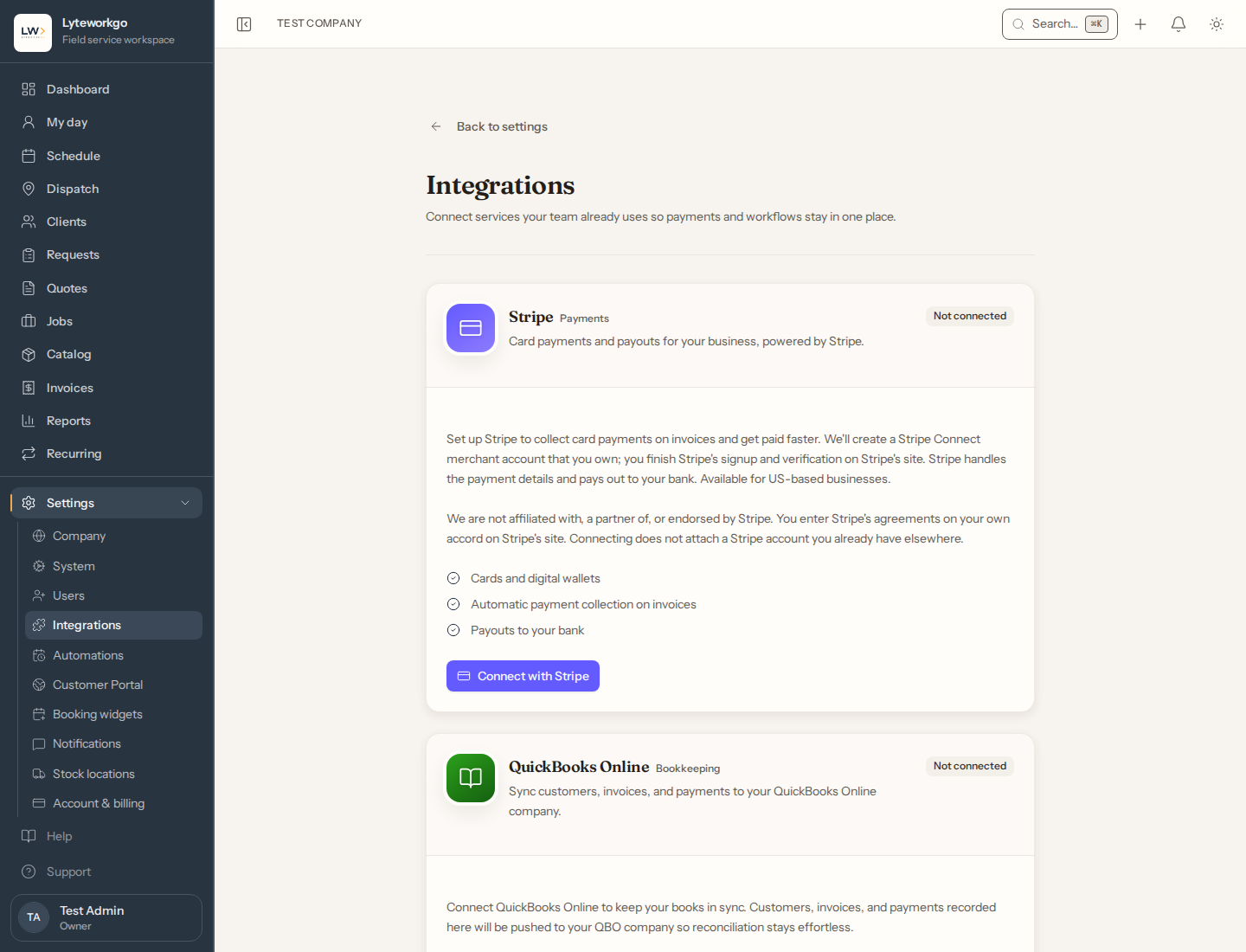
Connect Stripe so customers can pay invoices online.
Settings → Integrations is where you connect the money tools. You can still create invoices and record checks without Stripe; online card links need a connected Stripe account.
Requires owner or admin access. Office staff, Field techs and Billing do not see Settings → Integrations.
Stripe (payments)
Use this to:
- Start or finish Stripe setup (you will be sent through Stripe’s screens).
- Update account details when Stripe asks for more information (the button appears only then). Otherwise, change business details in the Stripe dashboard.
- Refresh connection status.
- Open the Stripe dashboard.
- Sync your logo and brand color so customer receipts look like you. The logo comes from your Company settings, so upload or change it there first, then sync.
- Disconnect (you will be asked to confirm).
When you click Connect with Stripe (or Complete setup), the button says Opening Stripe… while Stripe’s page loads. It can take a few seconds; there is no need to click again.
When you finish in Stripe, it sends you back here and the page checks your account with Stripe. Often Stripe needs a little longer to verify your details: the card then says In review, and you have nothing else to do. The page updates to Connected on its own when Stripe is done. If Stripe still needs something from you, the card says Setup incomplete and Complete setup takes you back to where you left off.
If a Stripe setup link has expired, a new one opens automatically.
Until Stripe is connected, invoices still work: send them and record payments manually.
QuickBooks Online
Not sold today. QuickBooks isn't part of any size sold today. The card appears only in a workspace that has it.
When it is available you can Connect (or reconnect), Disconnect, recheck discount and sales-tax preferences in QuickBooks, queue a resync, and read a short sync log of recent activity.