Invoices
Bill the customer, send the invoice, collect payment online or by hand, and track what is still owed.
An invoice is the bill. It can come from a completed job, a quote deposit, or you can create one from scratch.
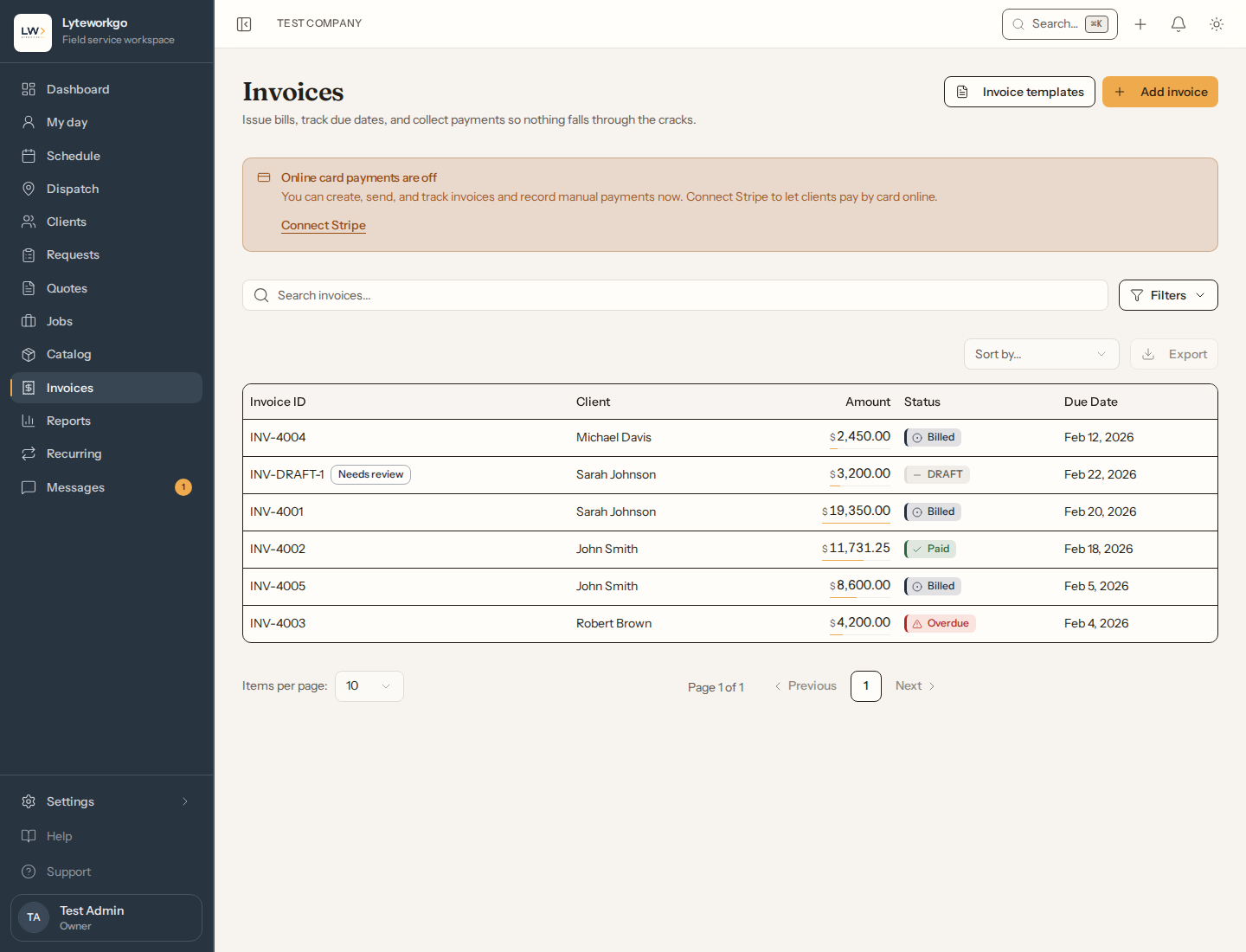
The list
Search and filter by status, deposit vs standard, the review queue, created date, due date, client, and amount. Export, Invoice templates, and Add invoice are here.
Who sees invoices. Owners, admins and Billing see every invoice. Field techs, by default, see their own: every invoice on a job of theirs, whoever created it, and an invoice with no job (a deposit, say) when it is assigned to them, or unassigned and created by them. With See everyone's work, not only their own they see every invoice. Office staff see invoices only with See invoices and payments turned on — then every invoice, since they see all the work. Without it, Invoices is not in the menu. Export is for owners and admins, Billing by default, and Office staff with both See invoices and payments and Export data turned on.
If card payments are not connected yet, owners and admins see a banner explaining you can still bill and record payments by hand, with a link to connect Stripe.
The review queue (Needs review)
If the Draft invoice on job completion switch is on under Automations, completing a job creates a draft invoice from its line items automatically. Those drafts wear a Needs review badge in the list, and the Review queue → Needs review (auto-drafts) filter shows just them. Open one and the draft banner names the job it came from. They behave like any other draft: the customer never sees them, no invoice number is used until you bill, and deleting one is a decision the automation respects — it will not re-create it.
Statuses you will see
- Draft — not sent.
- Billed — sent, waiting on payment.
- Partially paid — some money in.
- Paid — settled.
- Overdue — you will not see this on anything you create. Nothing sets it, and it can no longer be chosen by hand. A late invoice stays Billed or Partially paid, and the app works out what is late from the due date and the remaining balance: a $1,000 bill with $900 collected is $100 overdue, and a zero-balance Partially paid row is not overdue at all. (A few older invoices may still show Overdue; they behave exactly like Billed — you can still take payment, send a reminder and mark them paid.)
- Void — cancelled. Only an invoice that holds no money can be voided: refund its payments first.
- Refunded — paid, then all of the money sent back. Closed.
Partially paid, Paid and Refunded follow the money: a payment or a refund sets them, and nobody can pick them by hand. Nobody can move a paid, refunded or void invoice back to billed or draft; to bill the same work again, copy it. Only money moves them. A refund on a Paid invoice doesn’t reopen it: part of the money back keeps it Paid (the refund isn’t owed again), and all of it back makes it Refunded. On a Partially paid invoice, refunding some of what came in keeps it Partially paid, and refunding all of it puts it back to Billed: the whole bill is owed again. The customer can pay it online again only once Stripe asks for the same balance: a manual payment that already reached Stripe can’t be taken back there, so that invoice says Your customer can’t pay this invoice online right now and you collect the balance another way. And once an invoice holds a payment, or is paid, refunded or void, its amounts — line items, discount and tax — can’t change.
Creating an invoice
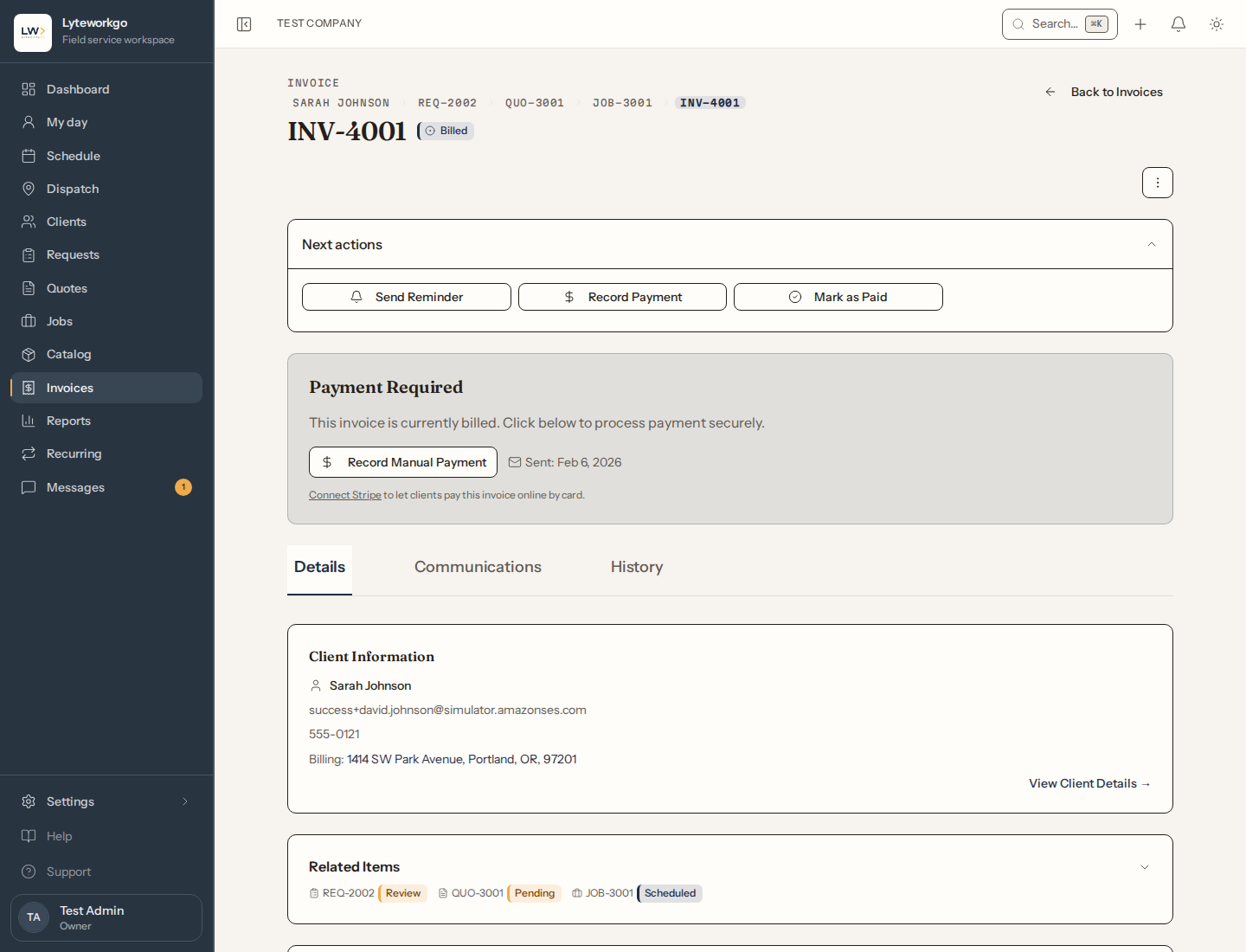
Pick the client, optionally an invoice template, then the due date (or tick Due upon receipt), line items and tax. A new invoice’s due date starts from your default payment terms in System settings. Start an invoice from a job, quote or request (its Create Invoice) and it is linked to that record for you; an invoice for a job also picks up the job’s PO / reference #, which prints on the invoice. If the customer sends their PO after the invoice went out, open the invoice and use Add PO / reference #. Save as Draft, or Send/Bill Client to bill it and send it to the client.
Tax is set on each invoice. A blank one starts at 0%; copying an invoice keeps that invoice’s rate; and invoicing a job that came from a quote fills in the quote’s tax rate and discount for you, so the bill matches what the customer signed. You can change either before you create it. If you use Stripe with automatic tax turned on, leaving the rate at 0% lets Stripe work the tax out for you.
Invoicing a job that has a quote
The invoice starts from the job’s line items — the quote as you edited it, parts recorded on site, anything added since — because that is what actually happened. Untick Include work added on the job to bill the quote exactly as signed instead.
The panel above the line items keeps the comparison in front of you: the quote total, any deposit already paid, what the customer is expecting, and what this invoice comes to. Billing more than was quoted is normal — extra work, extra parts — and the panel is there so it is never a surprise to you or to them.
A deposit already paid is credited automatically. It comes off after tax, because the deposit was collected without tax on it: the full tax is charged once, here. So the customer pays the quote total, less what they already paid, and nothing twice.
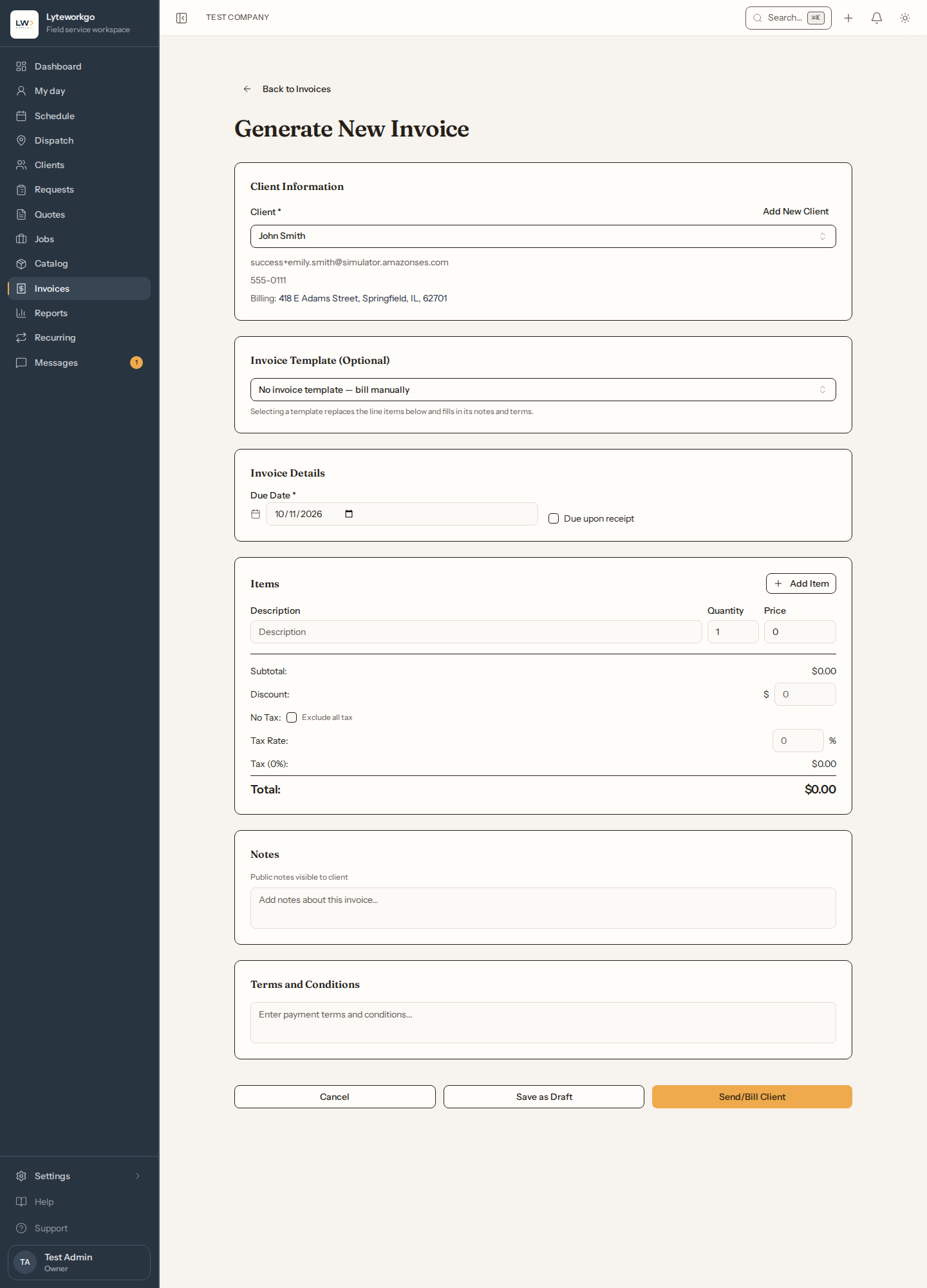
On an invoice
Typical next steps:
- Bill / send the invoice.
- Send a reminder.
- Record a payment you took yourself — Cash, Check, or Other. (Card payments taken through Stripe record themselves.)
- Mark as paid — for money that reached you outside the app, such as a check in the mail or a bank transfer, when you don’t need to record the details. It records the whole remaining balance as one payment and marks the invoice paid, and the customer is not notified. You give a short reason (up to 50 characters); it is for your team only and never appears on a receipt or in the customer portal.
- Pay in Stripe or share a payment link when online pay is connected.
- Download PDF of the invoice, with your logo and company details, to print, email or hand over (not offered on a draft or void invoice). It works whether or not Stripe is connected. When the customer can pay the invoice online, the PDF includes a Pay this invoice online link to the same secure payment page as the invoice email.
- Copy the invoice, or void it (only while it holds no money).
Record a payment and Mark as paid appear only on an invoice that still has a balance to collect: billed (or an older one showing Overdue) or partially paid.
Payment history lets you refund (part or all), and download or resend a receipt. A payment made with Mark as paid is listed there too, with its reason marked staff-only.
A draft can be deleted with Delete draft. An invoice that holds a payment can never be deleted — refund the payment instead.
Who can do what here. Creating, editing and sending (billing) an invoice, reminders, copying, voiding and Delete draft need Create and send invoices. Recording a payment, Mark as paid, a payment link, paying in Stripe and resending a receipt need Take payments. Refunds need Issue refunds. Owners and admins always have all three. Billing always has the first two, and refunds by default. Field techs have the first two by default, on their own invoices. Office staff have them only when they are turned on. A note on an invoice can be deleted only by the person who wrote it, or by an owner or admin.
Templates
Invoice templates store reusable line-item packages. Every recurring plan starts from one: the plan copies the template’s lines when it is created, and each visit bills the plan’s own copy, so editing a template later changes no plan that already exists. Anyone who can open Invoices can browse them here, and Office staff pick one when pricing a recurring plan even without invoices. Creating, editing and deleting one needs owner or admin access, or Office staff with Edit the price book, templates and stock turned on (and See invoices and payments as well, to reach this page).
Automations you might notice
In Automations (off by default for money reminders):
- Due soon — 7 days and 1 day before the due date (skipped when the invoice is due on receipt).
- Overdue — 1 day and 7 days after the due date (also skipped when the invoice is due on receipt). These messages do not change the invoice status by themselves.