Your quotes
Review estimates and, when the company asks for a signature, sign online.
Quotes are estimates the company sent you.
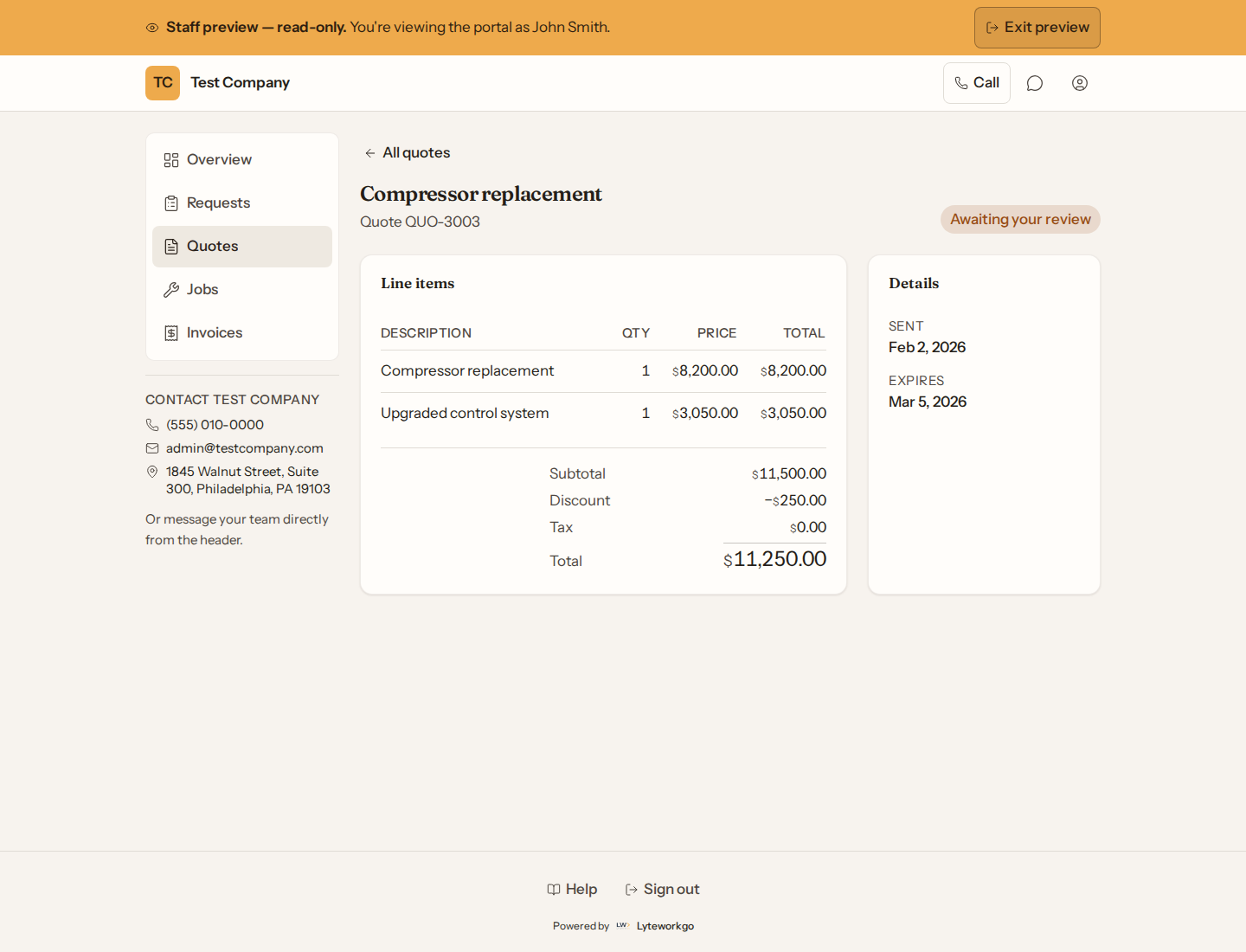
The list
See quote number, title, status, total, and dates. Open one to read line items, notes, and terms.
Accepting a quote
- If they require a signature, tap Review & sign and complete the signing page.
- If they do not require a signature, accept by calling, emailing, or messaging the company — the portal will not have an Accept button.
You can download a PDF when it is offered. A quote that needs a signature becomes downloadable only after you sign it; a quote that does not need one can be downloaded any time.
Quotes with options
Some quotes offer a choice, like Good, Better and Best, and extras you can add. The quote shows every option with its own total, marks the one the company recommends, and gives the total as a range until you choose.
- If they require a signature, tap Choose & sign. On the signing page, pick your option and any extras. Your total updates as you choose, and you sign your choice.
- If they do not require a signature, tell the company which option and extras you want.
Once the quote is accepted, it shows only the option you chose and what you added.