Customer Portal settings
Turn your customer site on, choose what customers can do, and preview the portal as a specific client.
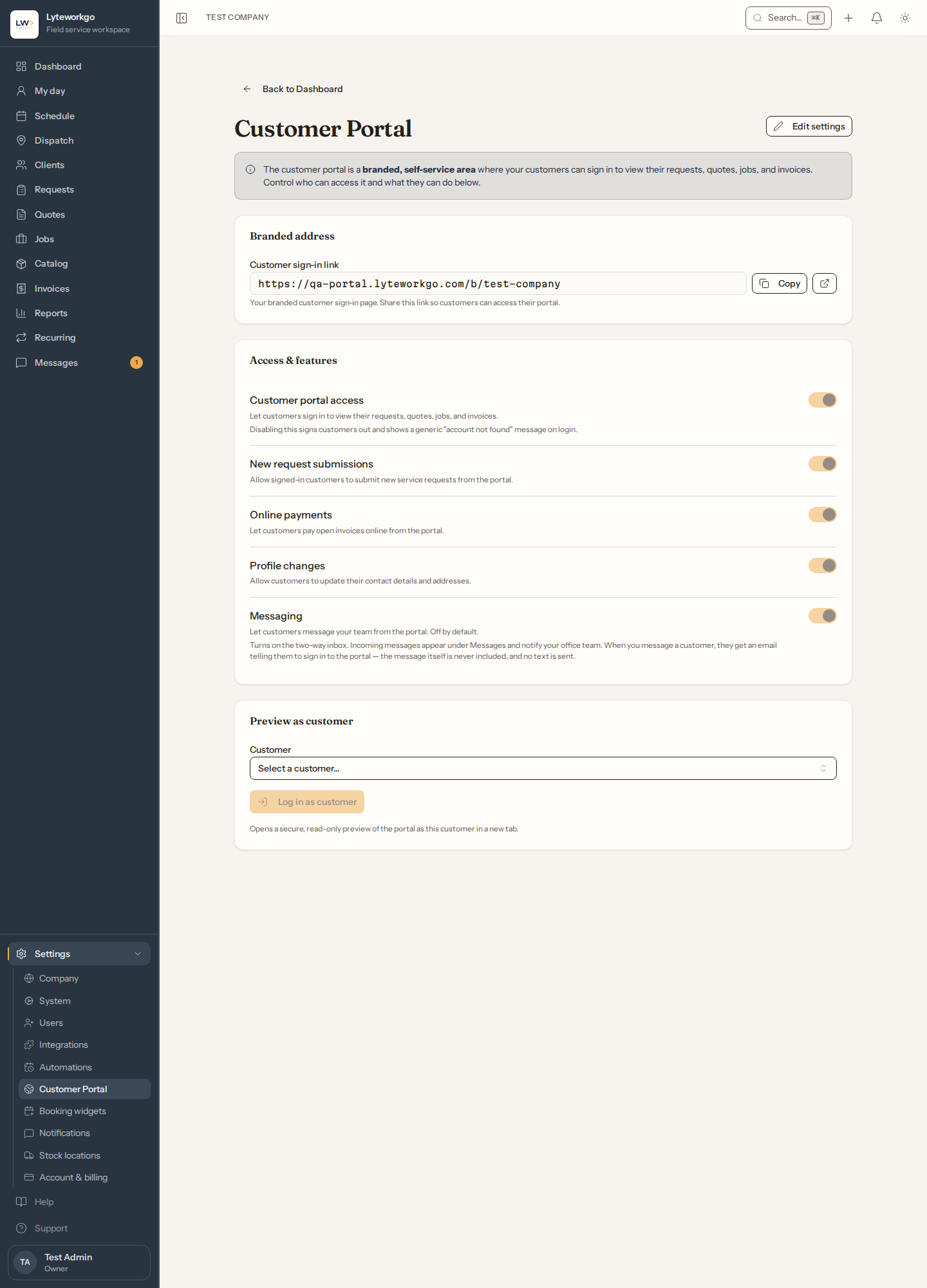
Settings → Customer Portal controls the website your customers use to see their work and bills. The customer-facing guides are under Using the portal.
Requires owner or admin access.
Share the link
Copy the branded sign-in URL (or open it) and send it to customers. They sign in with the phone number you have on file, then a one-time text code.
What customers are allowed to do
Each toggle is independent:
- Portal access — master on/off. Off means customers cannot use the portal at all.
- New requests — whether they can submit a service request.
- Online payments — whether Pay online appears on invoices (also needs Stripe; see Integrations).
- Profile changes — whether they can edit name/email and notification preferences. A new email is held until the customer confirms it from a link we send to the new address; until then the client keeps the old one.
- Messaging — a chat tab for the customer, which also feeds Portal Messages in the staff app. On by default. Turned off, customers can’t chat and Portal Messages is hidden from your team.
Click Edit, change toggles, Save.
Who reads Portal Messages in the staff app. Owners, admins and Office staff. Field techs and Billing see it only with Use Portal Messages turned on. You can edit or delete your own messages; only owners and admins can delete a colleague's, and nobody can edit or delete a customer's.
Preview as a customer
Preview as customer asks which client to use, then opens the portal as them, read-only. You will see a yellow Staff preview bar. You cannot submit requests, sign quotes, pay, or send messages in preview — that is on purpose, so you never act as the customer by accident. Use Exit preview when you are done. A preview ends on its own if your access is removed or you are no longer an owner or admin.
If a customer’s number was reassigned
The portal signs customers in with a text code, so whoever now holds a number can sign in as the client who had it. Customers get an email when their account is opened from a new browser. If you learn a number changed hands, change the phone number on the client (or mark the client Inactive): the old holder is signed out on their next request, and whoever signs in on the new number accepts the portal terms again.