Clients
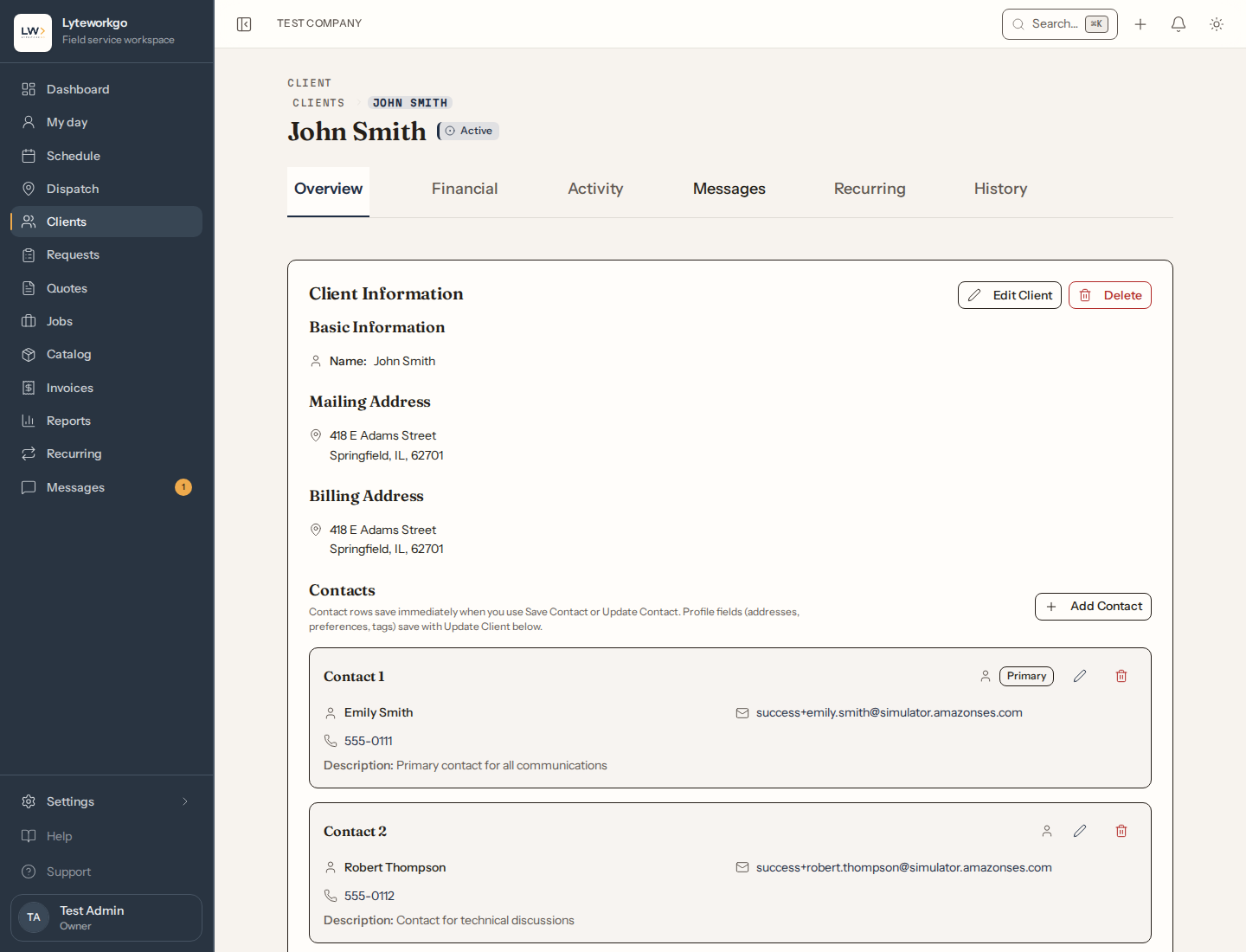
Customer records — who they are, how to reach them, and their history with you.
Clients is your customer list. Every request, quote, job, and invoice belongs to a client.
The list
- Search by name, company, or similar.
- Filter by status (Active, Inactive, Prospect, Lead) and when the record was created.
- Export CSV of the current list — owners and admins, Billing by default, and Office staff with Export data turned on.
- Add client to open a blank record.
Click a client’s card to open it. The email, phone, and address on a card are links of their own — tap the phone number to call.
Adding a client
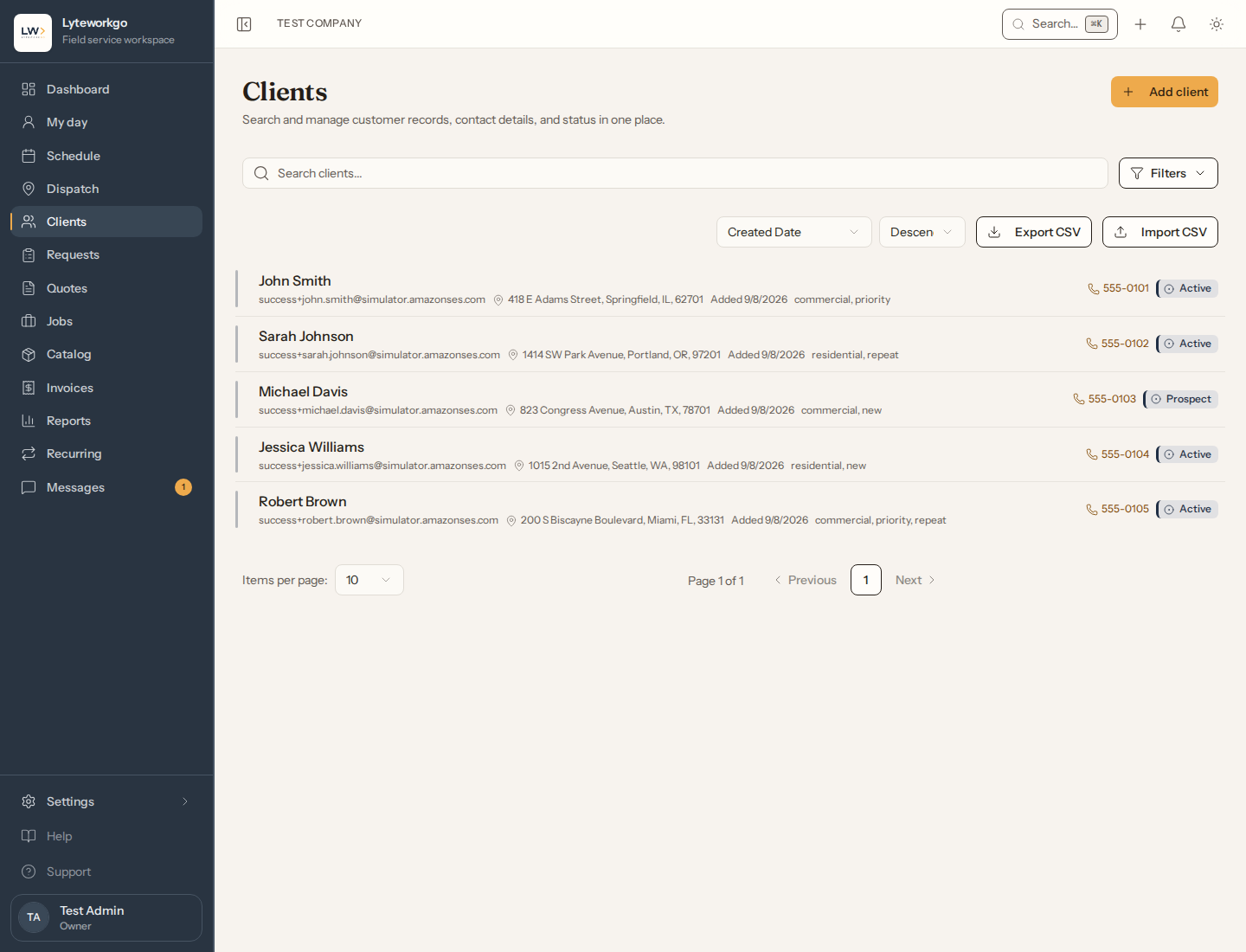
You will enter the name, optional company, mailing address, and contacts.
The mailing address needs to be verified, pinned on the map, or kept with Use address as entered before you can save. Verifying it keeps the map and driving directions accurate.
You can also set preferred contact method (email, phone, or text), best time to reach them, tags, status, and notes.
Add Contact if more than one person should be on the file (office manager, owner, tenant, and so on). Mark one as Primary.
Bringing your customer list over
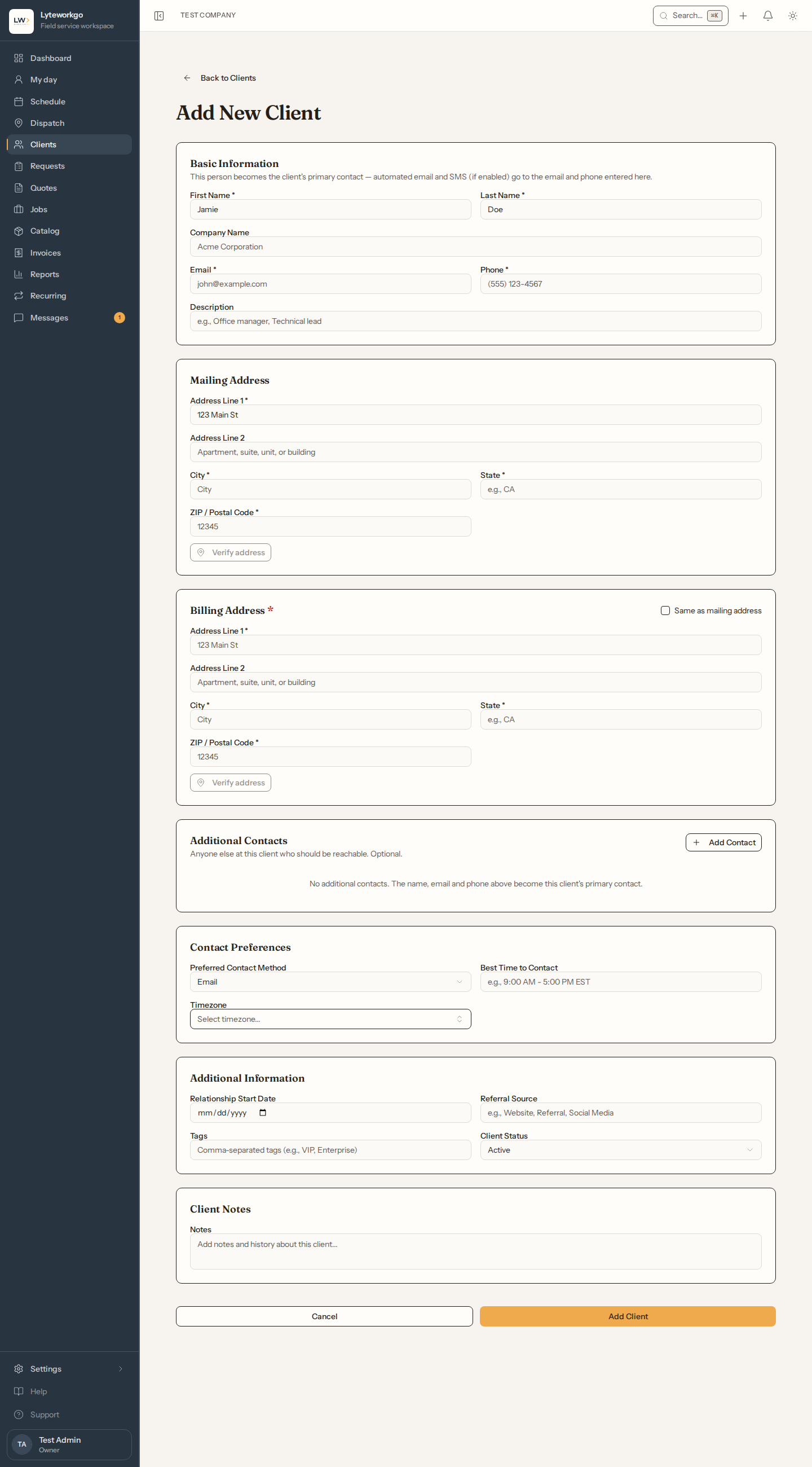
If you already have customers — in Jobber, Housecall Pro, or just a spreadsheet — you do not have to type them in one at a time. On the Clients page, click Import CSV.
Requires owner or admin access. Office staff, Field techs and Billing do not see Import CSV.
It runs in three steps:
- Download the template. A row only needs a first name, last name or company name — everything else is optional. If you are exporting from another product, you can usually upload that file as it comes: column names like First Name, Company, Email Address, Mobile Phone, Street 1 and Zip are understood without renaming anything.
- Say how you may contact them. Tick the box if these customers have agreed to receive email from your business, and the imported clients arrive with email switched on. Leave it unticked and they arrive with email off — you can turn it on per client later.
- Upload. Every row is checked. Good rows are imported; rows with a problem are skipped and listed with their line number, so you can fix those lines and upload the same file again. Anyone already on your list is skipped the second time, so nothing gets duplicated.
Text messaging is always off on imported clients, whatever your file says. Texting rules require a record of when each customer agreed and to what wording, and a spreadsheet cannot carry that. You turn texting on per customer from their page, which records the consent properly.
Importing does not message anybody. Nothing is emailed or texted to the people in your file — it only adds them to your list.
Addresses come in exactly as you typed them and are looked up for the map in the background, so a long list imports straight away instead of waiting on address checks. A country column reading United States or Canada is understood; anything we cannot place is flagged on that row so you can put in a two-letter code.
A client’s page
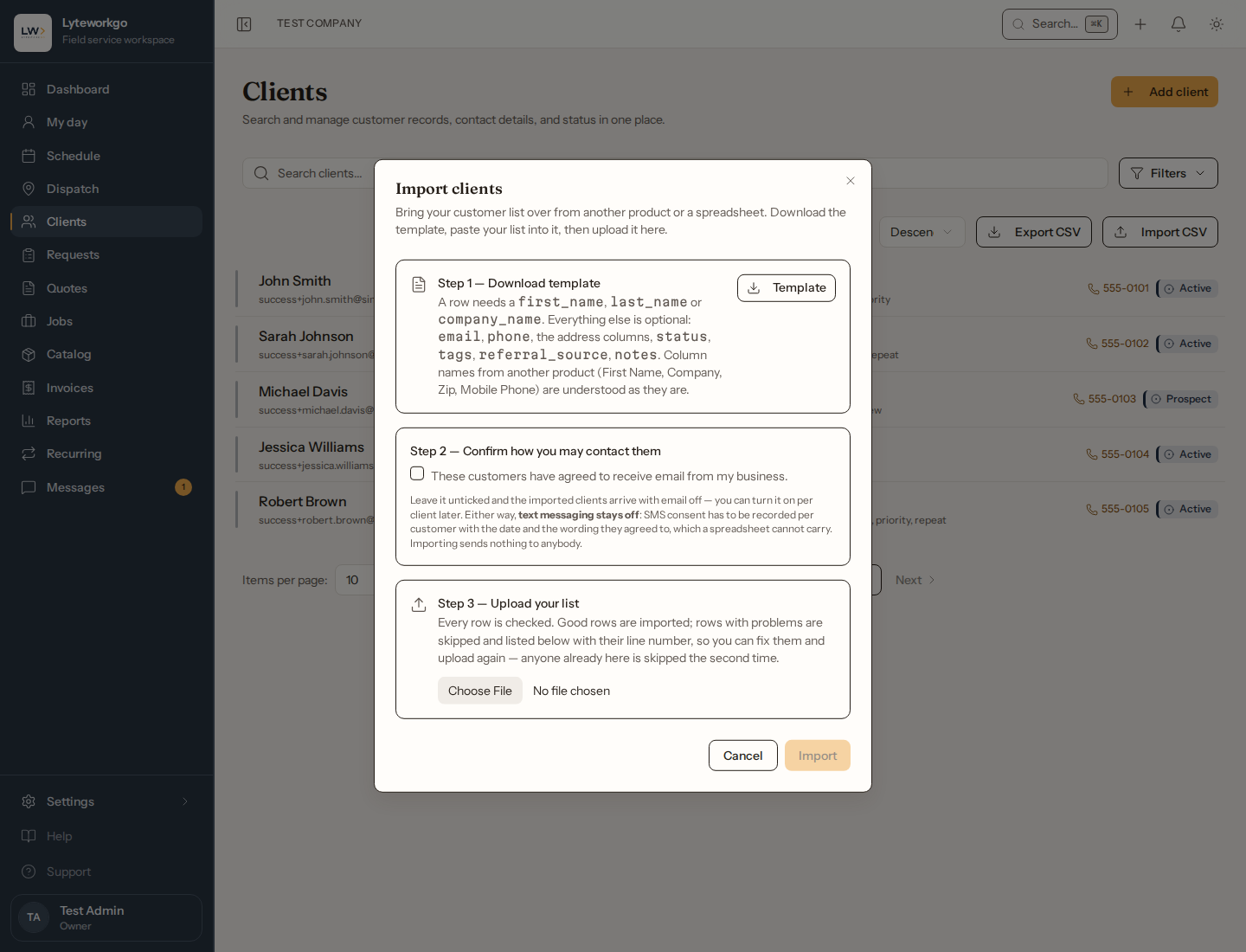
Tabs typically include:
- Overview — details, contacts, and shortcuts into their requests, jobs, quotes, and invoices.
- Financial — invoices and lifetime value.
- Activity — a history of what happened.
- Files — documents kept on the client, plus the photos and files from their requests, quotes and jobs.
- Portal Messages — chat with this customer through the customer portal, when portal messaging is on.
- Recurring — standing service plans for this customer.
- History — changes to the record, and who made each one.
When nobody on your team made a change, History says how it came in instead of a name: via signing link for a customer signing or declining through a link, via booking widget, via unsubscribe link, via text reply for a customer texting STOP or START, via customer portal, or via automation for an invoice the app made for you, such as an auto-drafted one. The same goes for the History on requests, quotes, jobs and invoices.
Not every tab shows for everyone. Financial needs See invoices and payments and See everyone's work, not only their own. Owners, admins and Billing have both. Portal Messages needs the customer inbox: owners, admins and Office staff, or anyone with Use Portal Messages turned on. It is hidden for everyone while portal messaging is turned off. Recurring is for owners, admins and Office staff. History is for owners, admins and Billing.
You can edit the client, manage contacts, and turn the client’s email or text notifications on or off. Turning texts on walks you through a short consent script (required for SMS). Turning texts off takes effect immediately.
Under Edit, three switches each stop one kind of automatic email for this client and leave everything else alone:
- Review requests — the review ask after a job. A client can turn it off themselves with the Unsubscribe link in that email.
- Quote follow-ups — the reminders about unanswered and expiring quotes.
- Follow-up emails — the emails your follow-ups send them, like check-up reminders.
A client can turn Follow-up emails off themselves, with the Unsubscribe link at the bottom of one. Their page then shows Follow-up emails Off · unsubscribed, and under the switch, “Unsubscribed on” the date “from a follow-up email.” Turning it back on asks you to confirm first. Do it only if the client asked you to.
A note on the client can be deleted only by the person who wrote it, or by an owner or admin.
Service addresses
Some clients have work done somewhere other than where they live: a landlord’s rentals, a family’s lake cabin. The Service addresses section on a client’s Overview keeps those places, so the next request, job or plan there takes one pick.
- It fills itself. Every address you use on one of the client’s requests, jobs or recurring plans is added here when you save it. Typing the same address again in different capitals, or with a full ZIP+4, doesn’t add a second copy. A different unit (Unit 1, Unit 2) is a different address.
- The mailing address isn’t listed. It is always the first choice in the pickers anyway.
- Add address saves one by hand, with an optional label like “Lake cabin” and a Default switch. Labels are for your team only. Customers never see them.
- Default is preselected when you pick a service address on a new request, job or plan for this client. A client has at most one.
- Archive hides an address from the pickers. Records that used it keep their copy. Using it again brings it back.
- Delete is offered only for an address no request, job or plan uses. An address that has been used can be archived, and its text can’t be changed: add the corrected address instead. You can still change its label or map pin.
Editing or archiving a saved address never changes a request, job or plan that already used it. Each keeps its own copy.
Files
The Files tab is where a customer’s paperwork lives: a signed service agreement, a certificate of insurance or W-9 for a commercial client, a tax-exemption certificate, warranty papers. Click Add files, give each one an optional category and description, then add them. A client can keep up to 50 files of its own — photos, PDFs, Word and Excel files, up to 10 MB each.
The same tab also lists every photo and file from the client’s requests, quotes and jobs, newest first, so you can find last spring’s water-heater photo without opening each job. Each one says which record it came from and links to it; change or remove those on the record itself. Use the filter to show only the client’s own files or only one kind of record.
Click a file’s name to download it. A client file can be deleted by the person who added it, or by an owner or admin.
Field techs see only their own work here, unless See everyone's work, not only their own is turned on for them. They see every file kept on the client, but only the files from requests, quotes and jobs that are theirs. Helpers do not see client files.
Delete (owners and admins) is blocked if they still have open work — the app will list what you need to close first.