System settings
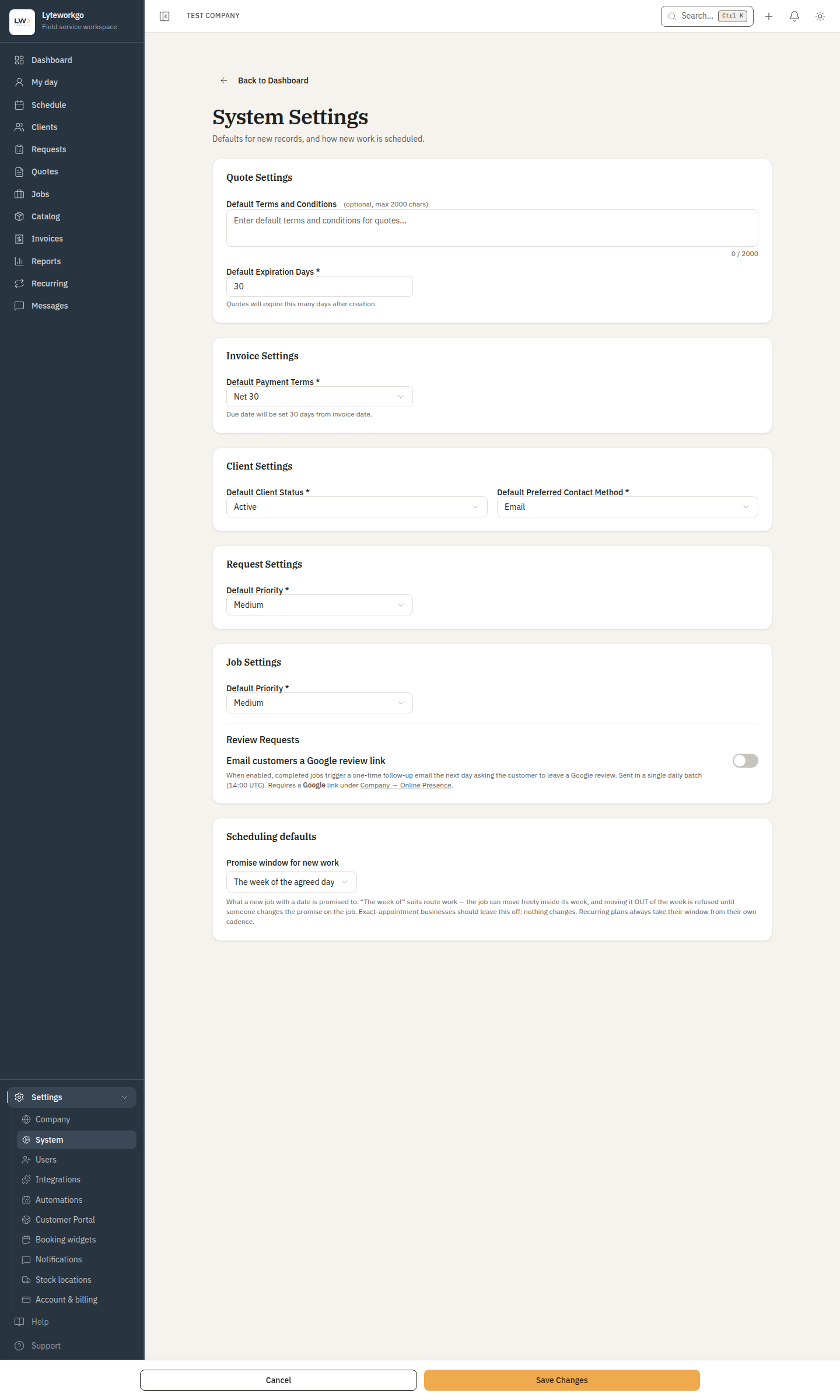
Company-wide defaults for new quotes, invoices, clients, requests, and jobs — plus optional review-request emails, scheduling defaults, the default labor cost rate and when your timesheet week starts.
Settings → System is where you set the usual values so new records start closer to how you work, and where you set the defaults for how new work is scheduled. Changing a default does not rewrite old quotes or invoices.
Requires owner or admin access. Office staff, Field techs and Billing do not see Settings → System.
Click Edit, change what you need, then Save (or Cancel).
Defaults you can set
- Quotes — default terms and conditions, and how many days until a new quote expires.
- Invoices — default payment terms: due upon receipt, or Net 15 / 30 / 60 / 90.
- Clients — default status and preferred contact method for new clients.
- Requests — default priority.
Review requests
Optionally email customers a Google review link after a job is completed.
- You need a Google link saved under Settings → Company → Online Presence first. Without it, turning this on is refused.
- The email goes out the morning after the job is marked Completed (your business’s local time, from about 9 AM) — not the moment you close the job.
- Each job is asked once. Reopening and re-completing a job does not ask the customer again.
- Each customer is asked at most once every 90 days, however many jobs you do for them. A weekly client gets one ask, not one a week.
- Turning review requests on does not mail anyone about past work: only jobs completed in the last few days count, and older ones are never asked about.
- Every review email has an Unsubscribe link. A customer who uses it turns off Review requests on their client record, and you can turn it back on there.
Completing jobs
Two switches decide what has to be done before anyone can mark a job complete. Both start off, and each saves the moment you flip it — no Edit needed.
- Require customer sign-off to complete — the customer signs off on the work first (their Work sign-off), on your phone at the job or from a link.
- Require checklist items to complete — every checklist item marked required is ticked first.
Owners and admins can still complete a job without them, with a reason that is recorded on the job. See Completing a job and customer sign-off.
Scheduling defaults
Two more defaults live on this page, under Scheduling defaults — not under Settings → Company → Scheduling (that card is still timezone and operating hours).
- Promise window for new work — what a new job with a date is promised to: no window (exact appointments), the agreed day, that week, or that month. Leave it on “no window” if you book exact times; nothing changes. Recurring visits ignore this and take their window from the plan’s cadence. You can still change a window on the job page for one job.
- Travel time between stops — minutes counted between consecutive stops when deciding whether a technician’s day is full. Only appears in workspaces with dispatch (see the note below).
Not sold today. Travel time between stops is a dispatch setting. Dispatch isn't part of any size sold today, so the setting appears only in a workspace with dispatch. If you don't see it, that is expected.
Labor cost
The default rate is what an hour of someone’s time costs your business when they have no rate of their own, for job profit. Type it and click Save rate — no Edit needed. A change applies to time logged from then on; time already logged keeps its rate. Leave it blank for no default: time from someone without their own rate then isn’t counted in a job’s cost.
Each person’s own rate is in Edit user on the Users page. You see this card only if you can see costs.
Timesheets
Week starts on decides which day your timesheet weeks begin — Monday unless you change it. Pick the day and click Save week start — no Edit needed. Weeks already approved keep the days they were approved with.
Related
- Quotes · Invoices · Jobs · Automations