Recurring
Standing service plans that create jobs on a schedule — weekly lawn care, seasonal HVAC visits, and similar.
Recurring is for work that repeats. You set up a plan once. Lyteworkgo then creates jobs for each visit, which you (or auto-dispatch) put on the schedule.
Requires owner, admin or Office staff access. Field techs and Billing do not see Recurring.
The list
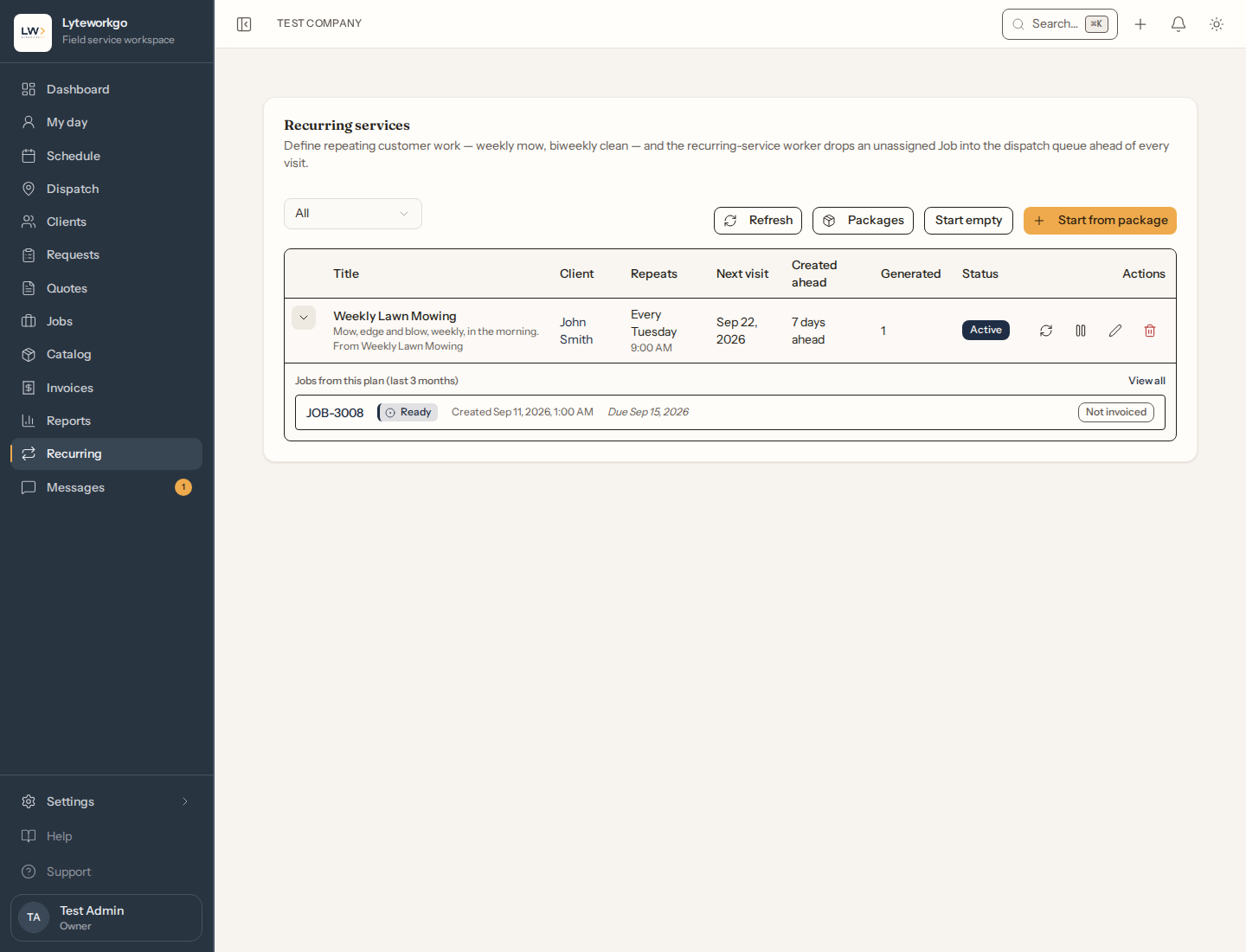
Filter Active, Paused, or All. Expand a plan to see the jobs it has already created. Per plan you can:
- Run now — create the plan’s next visit right away instead of waiting for it to come due. It is the next regular visit, not an extra one: the plan then moves on to the visit after it, and with auto-dispatch it is booked for its regular date. Not available while the plan is paused or ended, and refused while the plan is backlogged (see below).
- Renew — on a plan that has ended, set a new start and end date to start it again.
- Pause or Resume. Resuming picks up at the plan’s next visit; visits missed while it was paused are not created.
- Edit or Delete.
Badges include Active, Paused, Ended, and Backlogged (see below). If you can see invoices, each generated job shows its invoice and status, or Not invoiced when it has none yet.
You can also open a client and use their Recurring tab.
The list header has two ways to add a plan: Start from package is the quicker one and the one to reach for; Start empty fills nothing in. Packages opens the manager described below.
Packages
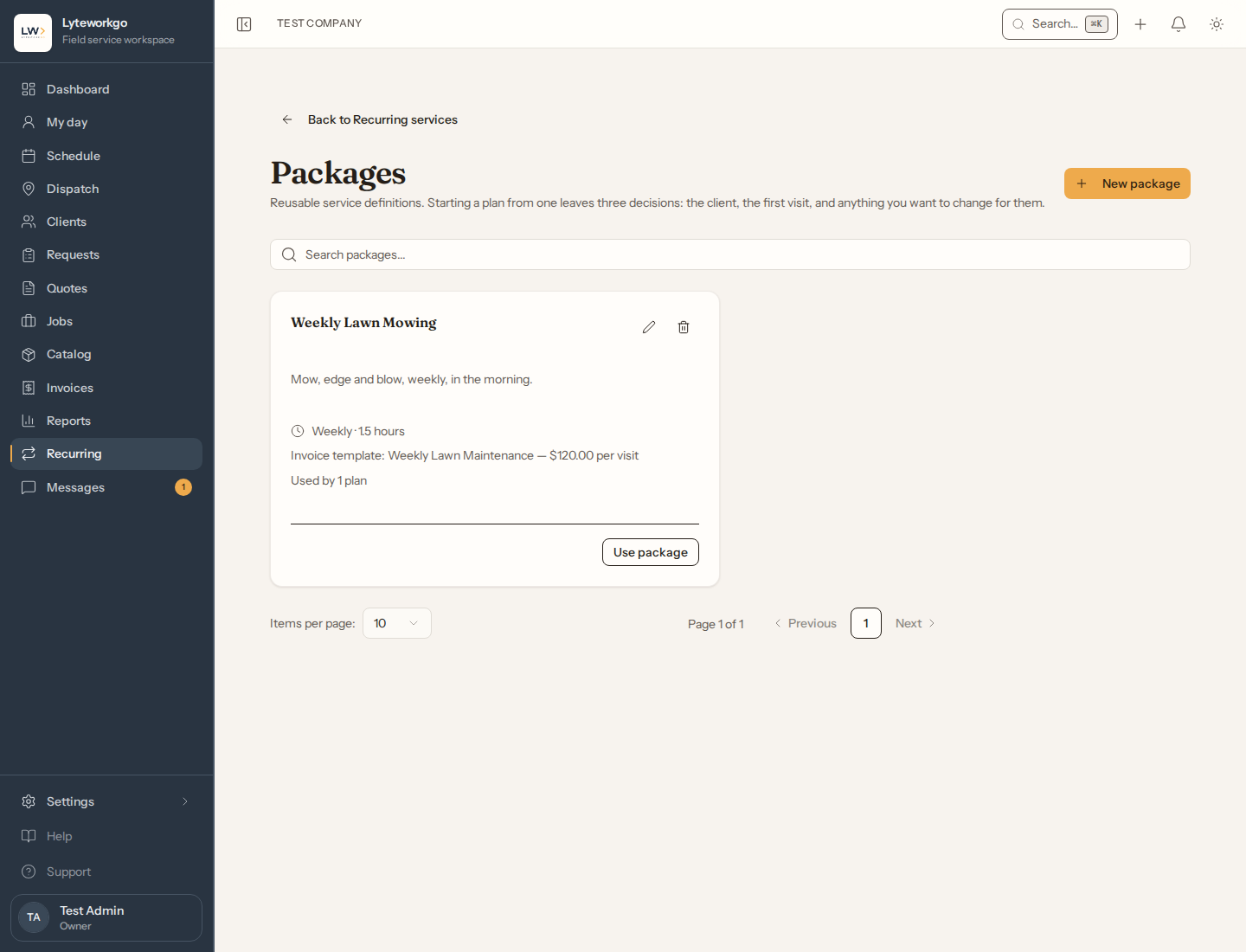
A package is a plan with the customer taken out — the work, how often it repeats, how long a visit takes, the timing preferences, and what a visit bills, saved once and reused. Starting from one leaves three decisions: which package, which customer, and the date of the first visit.
Packages live under Recurring → Packages. Anyone who manages recurring work can see them and start plans from them; creating, editing and deleting one is for admins and owners, because changing a package changes what every future plan starts from.
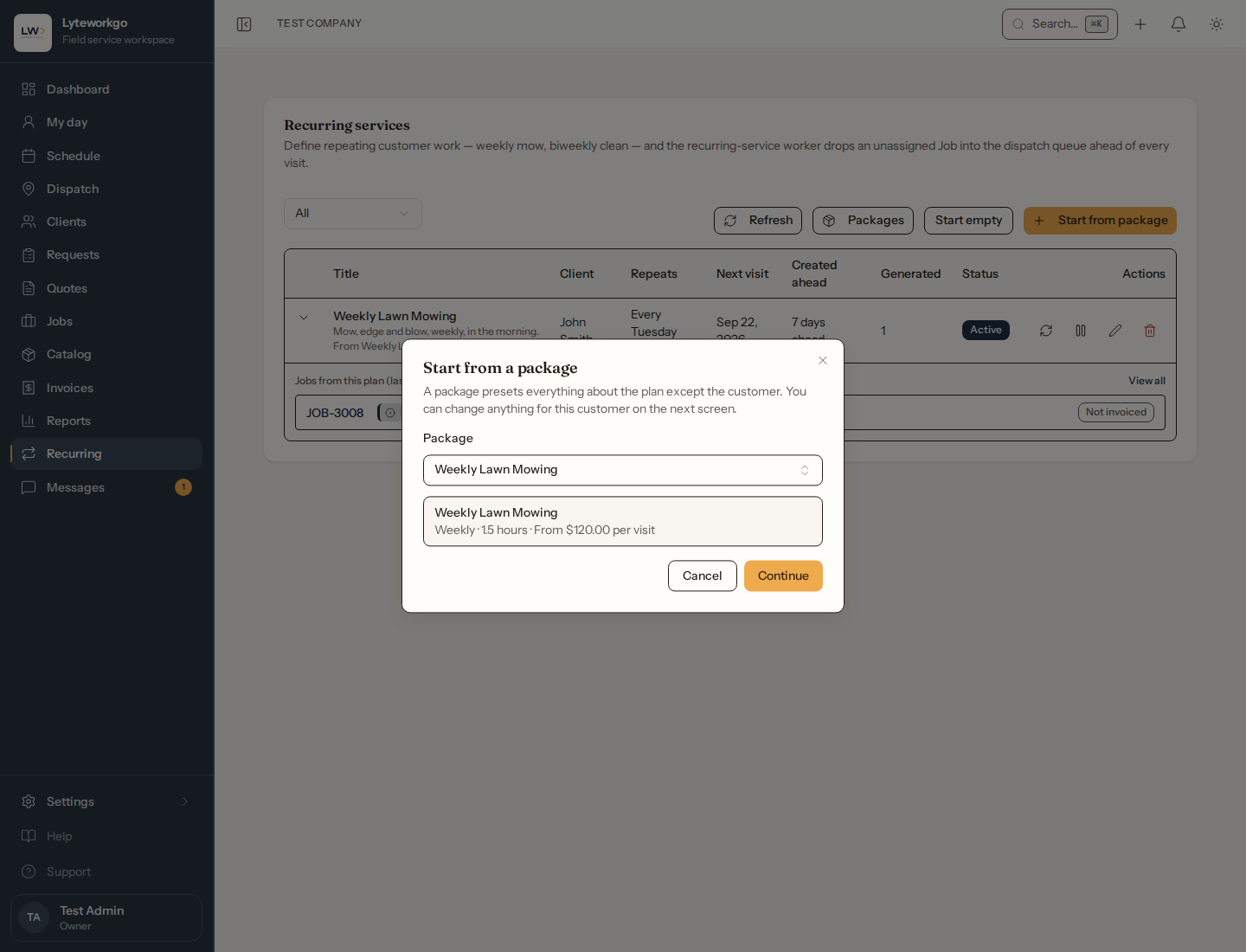
- Start from package opens a picker. Choose one, check the summary — how often, how long, what a visit costs — and Continue.
- If you have no packages yet, admins and owners go straight to the form to make the first one and land back on the picker with it selected. Everyone else sees a note asking an admin or owner to create one, and can still Start empty.
- Each package card shows how often it repeats, how long a visit takes, the invoice template it bills from and the per-visit price, plus Used by N plans.
- Editing a package changes nothing about plans already started from it. A plan is a copy, not a link. The same goes for deleting one: plans that came from it carry on, and each still says which package it came from.
- On the plan form, Save as package… (admins and owners, editing an existing plan) turns a plan you have already set up into a package. The customer, dates, technician and address are left behind. If you have changed this customer’s prices, you are offered the option to save those prices as a new invoice template too.
Creating or editing a plan
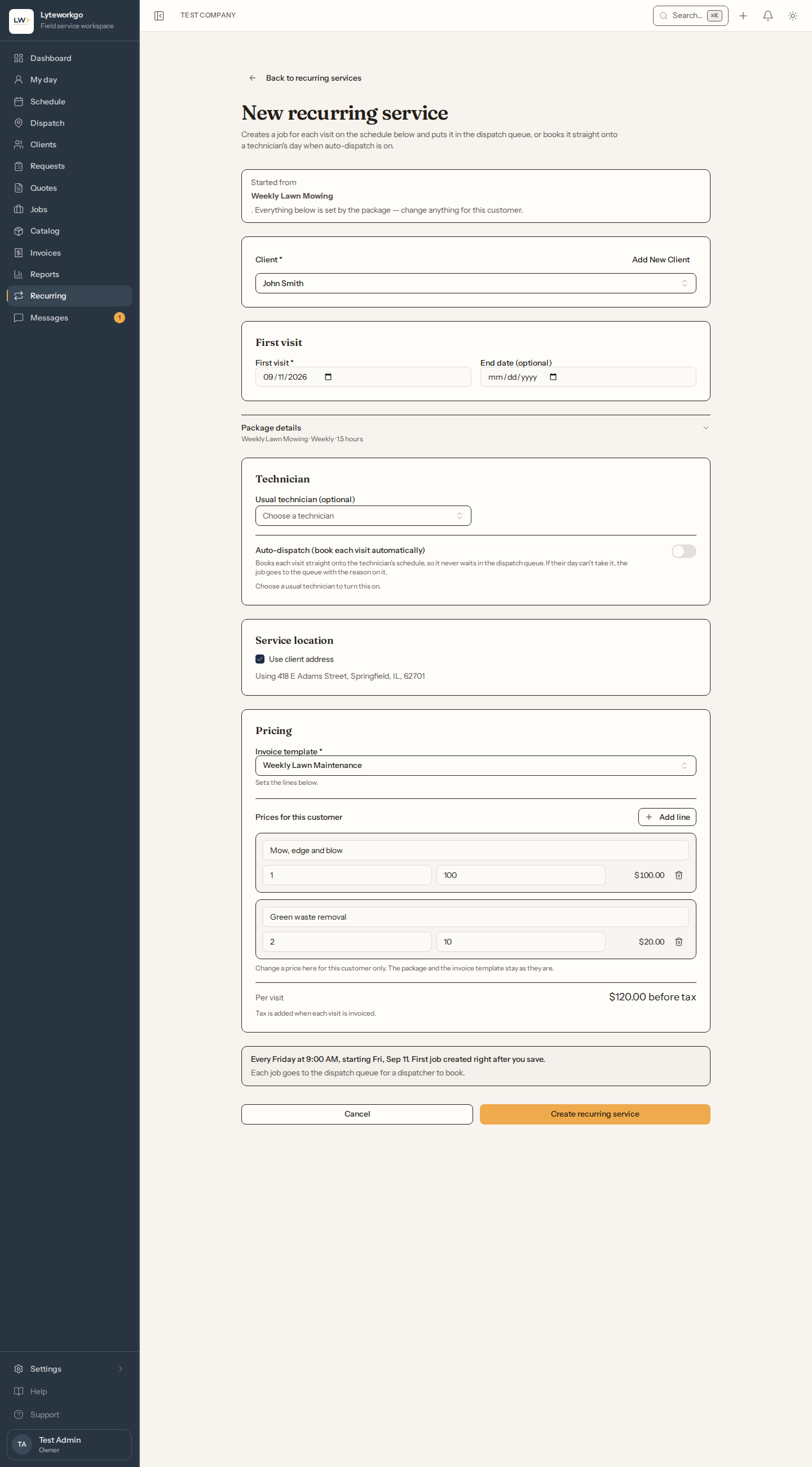
Start from the Recurring list, or from a client’s Recurring tab — then the client is already chosen and a For {client name} line sits under the title. Required fields are marked with an asterisk; everything else can wait until you need it.
Started from a package? A note at the top names it, and the Service and Cadence cards are folded into Package details — everything the package answered, one click away and still editable. What stays open is what the package could not know: the customer, the first visit, the technician and the price.
Client. Pick the customer, then the card shows their contact details — email, phone and mailing address — so you can check you have the right customer without leaving the form. Anything not filled in on their record reads Not on file.
When you started from a client, or are editing an existing plan, the customer is already decided: the picker is gone and the card shows just their details. The mailing address shown here is the first choice in the service address picker below.
Service. Give the plan a Title and the Estimated hours a visit takes — auto-dispatch uses the hours to check that the technician’s day has room. Optionally pick a job template: when you are creating a plan it fills in the title (if empty) and the estimated hours, and its checklist, tools, and materials are copied onto every job. A Description is notes for the team, also copied onto every job.
First visit. The date of the first visit (labelled Start date, in a card called Dates, when you edit an existing plan), plus an optional End date. For a weekly or same-weekday plan, the weekday of the first visit is the weekday every visit lands on.
Cadence. Choose how often the plan Repeats — Weekly, Every 2 weeks, Every 3 weeks, Monthly, same date, Monthly, same weekday, or Custom: every N days.
- Custom: every N days asks for Repeat every (days). A multiple of 7 keeps the same weekday; anything else lands on a different weekday each visit, and the form warns you.
- Monthly, same weekday asks for the Week of month — first, second, third, fourth, or last.
A sentence under the fields reads the plan back as you go — for example Every Tuesday, starting Tue, Sep 8. First job created right after you save. or … starting Tue, Sep 22. First job created Tue, Sep 15, 7 days before the visit. When you edit a plan without changing its start date or how it repeats, the sentence names the next visit instead, and a paused plan says so instead of promising a job.
Time of day is optional. Set a Preferred start time if the customer expects the visit at a set time — with auto-dispatch on, the visit is booked at that time; otherwise it is a hint for whoever schedules the day. Set a Service window if they can only be there for part of the day — pick Morning, Afternoon, or Evening, or enter an Earliest arrival and Latest arrival. The window is about when the technician arrives; a long job may finish after it. A preferred start time has to sit inside the window.
More scheduling options is collapsed to begin with. It holds Create jobs this many days ahead (default 7; 0 creates the job on the day of the visit) and Schedule freeze horizon (days) — how many days before each visit its advance reminder goes out; leave it blank for the company default from Automations. The section opens by itself when you edit a plan that set either value.
Technician. Pick the Usual technician, if there is one. It has to be someone who can be booked for work — an owner, an admin, a Field tech or a helper — and a plan whose usual technician can no longer be booked needs another one, or none, the next time it is saved. Without Assign and reschedule other people’s work (see Customizing access) you can name only yourself — if you can be booked for work — and only on a new plan, or on one with no usual technician that you created (or that nobody on the team did). A usual technician who is already named stays as they are, and the Auto-dispatch switch can then be changed only while the usual technician is you. On a one-person account you are already selected when creating a plan (you can still change it). Directly beneath is the Auto-dispatch (book each visit automatically) switch — see below. On a new plan, choosing a technician turns it on, because booking the work is usually the point of naming someone; switch it off if you would rather book the visits yourself. Editing an existing plan never changes the setting for you.
Service location. Pick where the visits happen: the client’s mailing address (the starting choice, unless the client has a default service address), one of the client’s saved service addresses, or New address… to type one. A saved address is ready as it is. A new one must be verified, pinned on the map, or saved as entered before the plan can be saved. Every visit the plan creates goes to that address.
Pricing. Pick the invoice template the plan bills from — it is required, because every visit has to bill something. Picking one fills in Prices for this customer below it, and those lines are what this customer’s visits bill.
Change a price there and only this customer is affected: the invoice template, and any package the plan came from, stay exactly as they are. The footer shows the per-visit total before tax and, when your prices differ from the template’s, by how much — with Reset to template prices if you want to go back. Tax is added when each visit is invoiced.
If you do not have a suitable template yet, owners and admins — and Office staff with Edit the price book, templates and stock turned on — can make one without leaving the form with Create a new invoice template… in the picker. Changing the template on an existing plan asks whether to keep the prices you have or replace them with the new template’s — it never replaces them behind your back. Once a plan has a template you can change it, but not clear it; on an older plan saved before this was required, the picker is empty until you choose one.
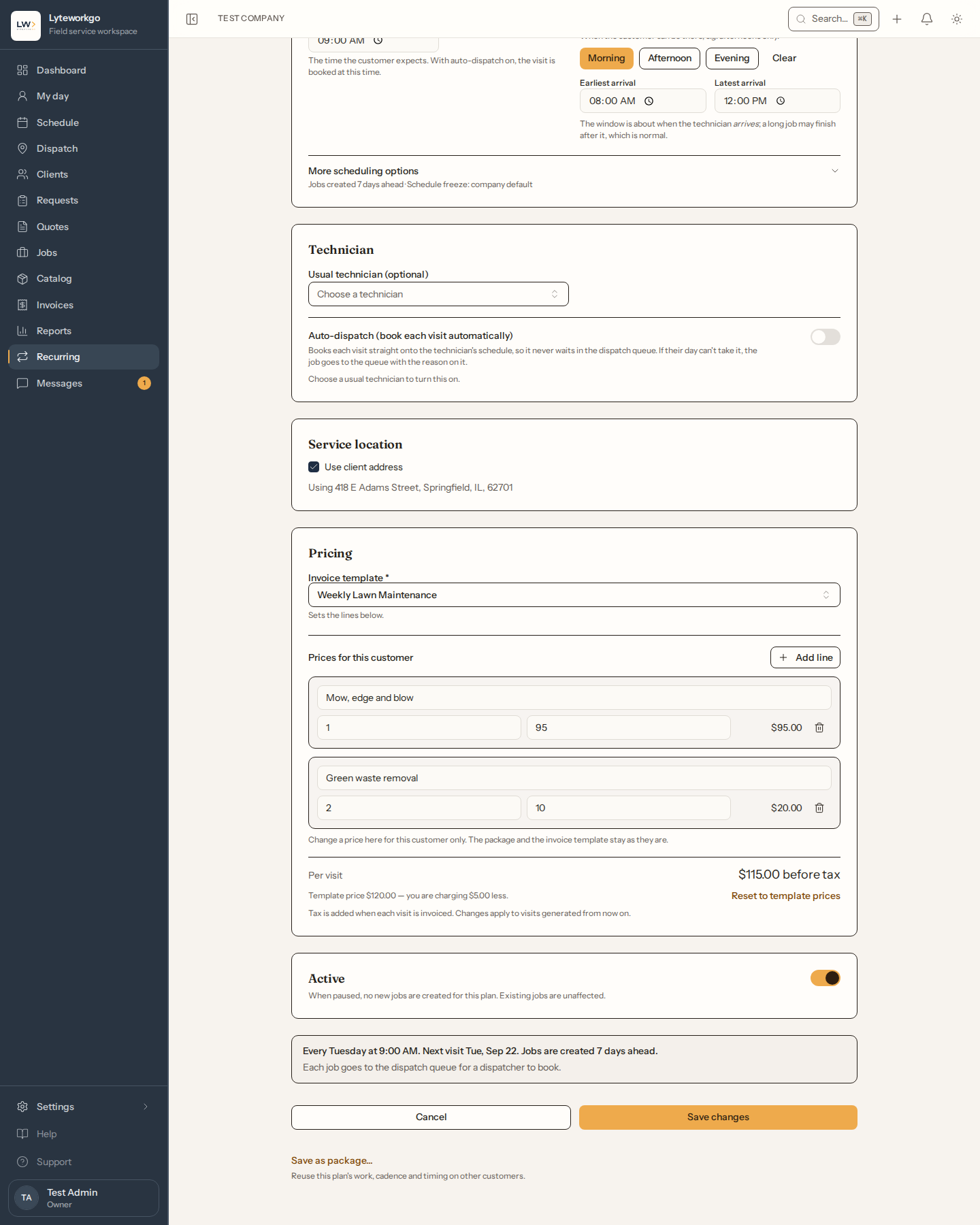
Active appears only when editing. A new plan is active from the moment you create it — there is nothing to switch on. Switch Active off to pause the plan (no new jobs are created) and back on to resume. Saving a plan never changes whether it is paused unless you turned that switch: if a colleague paused the plan while you had the form open, saving is refused and asks you to reload.
The footer sums up the schedule and what happens to each visit, followed by Cancel and Create recurring service (Save changes when editing). Save is never greyed out: if something is missing or not allowed, the message appears beside that field. After saving, you land on the client’s Recurring tab (when you started from a client) or on the Recurring list, with the plan you just saved highlighted.
Auto-dispatch
Turn on Auto-dispatch (book each visit automatically) and each visit is booked onto the usual technician’s schedule when its job is created. It needs only a usual technician:
- With a Preferred start time, the visit is booked at that time.
- Without one, the visit lands on the day and the route decides the order. Lyteworkgo then needs working hours to tell whether the day has room — set the technician’s hours on Team availability, or your company’s operating hours in your business settings (owners and admins). The form reminds you of this whenever auto-dispatch is on without a preferred start time. Until hours are set, every visit waits to be scheduled instead of booking, so this is worth doing before your first plan.
If the technician’s day cannot take the visit — they are booked off, outside working hours, marked unavailable, already full, no longer work here, or can no longer be booked for work — the job is created waiting to be scheduled, with the reason on it. It shows under Jobs as Needs scheduling; in a workspace with dispatch, it goes to the dispatch queue instead.
When auto-dispatch is on and a preferred start time is set, one more control appears: If the start time runs past working hours. Company default follows the overtime setting in Automations. Leave it for scheduling (labelled Ask the dispatcher in a workspace with dispatch) leaves that visit waiting with the reason on it. Book the next opening books it at the next time that fits on the same day — everyone who manages recurring plans gets an in-app notification — and leaves it waiting only if nothing fits that day. A visit with no preferred start time has no time to run over, so the control stays hidden.
In a workspace with dispatch, auto-dispatch also keeps working when the usual technician can’t: if they’re away or booked up, Lyteworkgo tries the best-suited substitutes — same rules, nobody gets double-booked — and books the visit onto the first one who is genuinely free. The visit card shows a Substitute chip with the full note (“Booked onto Nina Near instead of the plan’s technician — …”) and everyone who manages recurring plans gets an in-app notification, so nothing changes hands silently. If no substitute fits either, the visit goes to the unassigned queue exactly as before.
Stopping a plan: visits that are already booked
Pausing, deleting or ending a plan stops new jobs. Jobs the plan already created are still on the schedule, and with auto-dispatch they may already be booked on a technician’s day, so the customer will keep getting appointment reminders for them.
So Pause, Delete, and a save that switches Active off or sets an End date before booked visits all tell you how many visits are booked and on which dates, with Also cancel these visits ticked. Leave it ticked and those visits are cancelled the normal way: the customer is told, and the technician’s day is cleared. Untick it to keep them.
If you change the plan’s service address, visits already booked at the old address move to the new one. If you change the usual technician, visits already booked stay with the previous technician until you move them from the job.
Archiving a client stops all of that client’s recurring plans.
Company holidays
Lyteworkgo does not have a company holiday calendar yet. A weekly Monday plan is still booked and reminded for a Monday that is a holiday. Until holidays arrive, record time off for each technician on that day on Team availability: auto-dispatch then leaves the visit waiting to be scheduled, with the reason on it, instead of booking it. You can also move a visit by hand.
What happens in the background
Lyteworkgo keeps creating upcoming jobs from the plan.
If two of a plan’s jobs are still waiting to be scheduled, that plan stops creating new ones and shows a Backlogged badge — that is the app telling you the plan is ahead of the schedule, not a fault. Click the badge to open the Jobs list filtered to exactly those waiting jobs. Everyone who manages recurring plans also gets a bell notification the first time it happens.
You do not resume it. Schedule (or assign a date, time, and technician to) one of the waiting jobs and the plan starts creating work again on its own — the badge clears itself. Backlogged is separate from Paused, which is the switch you flip.