Automations
Turn reminder and follow-up messages on or off — appointment reminders, quote nudges, and invoice due notices.
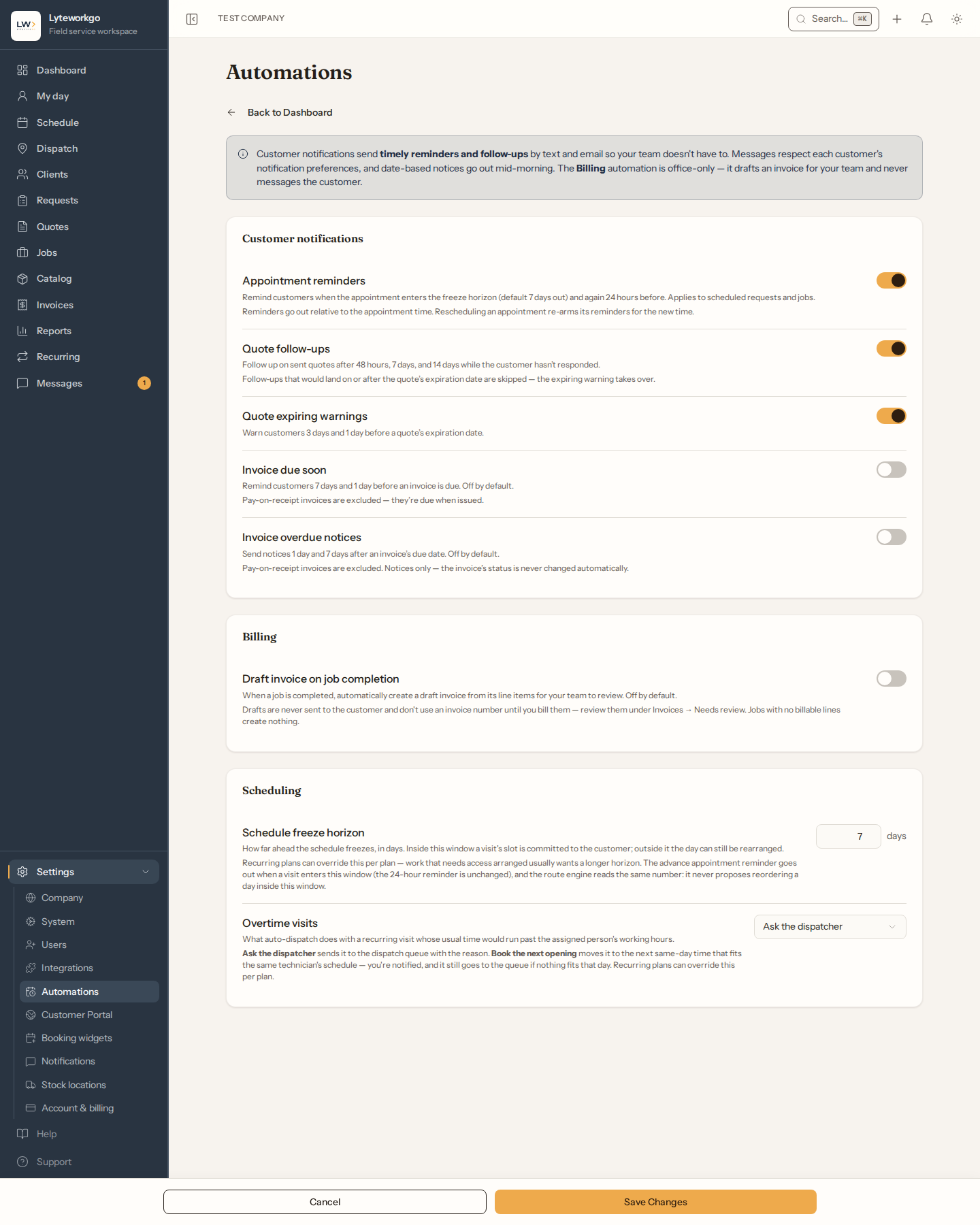
Settings → Automations is a set of switches. The reminder switches message the customer for you — email, and texts to customers who have agreed to them — at the times below, so you do not have to remember those follow-ups yourself. The switch on the Billing card, Draft invoice on job completion, is different: it never messages anyone. It quietly drafts an invoice for your team to review when a job is completed. (The card is named for invoicing; it has nothing to do with the Billing role.) The Time tracking card’s nudges go to your team, never to customers.
Requires owner or admin access. Office staff, Field techs and Billing do not see Settings → Automations.
Click Edit, flip the switches, then Save.
What each switch does
| Automation | When the customer hears from you |
|---|---|
| Appointment reminders | When the appointment enters the freeze horizon (default 7 days out — the number on this same settings page) and again 24 hours before a scheduled request or job. At a 1-day horizon only the 24-hour reminder is sent. Moving an appointment to another day sends its reminders again; a change of time on the same day doesn’t resend them. On by default |
| Quote follow-ups | 48 hours, 7 days, and 14 days after you send a quote, if they have not responded. On by default. A step that would land on or after the quote’s expiration date is skipped |
| Quote expiring warnings | 3 days and 1 day before the quote’s expiration date. On by default. These are notices only — the quote’s status does not change |
| Invoice due soon | 7 days and 1 day before the due date. Off by default. Skipped when the invoice is due on receipt |
| Invoice overdue notices | 1 day and 7 days after the due date. Off by default. Skipped when the invoice is due on receipt. These are notices only. Nothing ever changes an invoice to Overdue, because how late a bill is gets worked out from its due date and what is still owed |
These are the same messages you can customize (email only) under Notifications.
To stop quote follow-ups and expiring warnings for one client — a contractor who answers bids on their own schedule, say — open the client, click Edit, and turn off Quote follow-ups. Review requests, beside it, stops the review email for that client, and Follow-up emails stops the emails your follow-ups send them. A client can also turn Follow-up emails off themselves, with the Unsubscribe link in one, and Review requests off with the Unsubscribe link in a review email. Everything else they receive is unchanged.
Draft invoice on job completion (the Billing card)
This switch sends nothing to the customer. When it is on and a job is marked Completed, Lyteworkgo creates a draft invoice from the job’s line items and puts it in a review queue for your team.
- Find the drafts under Invoices with the Review queue → Needs review (auto-drafts) filter — each one wears a Needs review badge, and the draft names the job it came from.
- Drafts are never sent to the customer, never charge anything, and do not use an invoice number until you bill them. Review, adjust, then bill — or delete the draft if the job should not be invoiced.
- A job with no billable line items creates nothing, and each job only ever gets one automatic draft. If someone already invoiced the job by hand, the automation stays out of the way.
- Off by default.
Time tracking
The Time tracking card has three controls. None of them contacts a customer, and none changes anyone’s time.
- Timer running too long — tells the person, and whoever approves timesheets, when a timer has run longer than the limit. Helpers are told by email. It can go out at any time of day, because a forgotten timer doesn’t wait for the morning. The timer keeps running and is flagged on the timesheet. On by default.
- Running timer limit — how many hours a timer runs before that nudge: 10 unless you change it, anywhere from 2 to 24. Each timer is nudged once.
- Timesheets ready to approve — on the first day of each week, tells whoever approves timesheets when last week has time waiting. On by default.
See Timesheets → Nudges.
Your timezone
Every time on this page is your business’s local time, and the app needs you to say which one that is. You set it in Settings → Company → Scheduling, above your operating hours.
It is required, and the app asks for it during setup. If you have not chosen one yet, you will be asked the next time an owner or admin signs in.
What it changes:
- When reminders and follow-ups go out. “24 hours before the appointment” means 24 hours before it on your clock, not the server’s. Same for the quote and invoice windows in the table above.
- Which day a follow-up counts from. A quote that expires “in 3 days” counts those days on your calendar.
- Which clock a deadline in a customer email is printed on. When an email names a moment a customer has to act by — the expiry on a quote’s signing link — it is shown on your clock and labelled with it (“7:00 PM PDT”), so a customer in another state can tell what they are reading.
What it does not change:
- The appointment time itself. “Thursday at 5” reaches the customer exactly as you entered it, in every email and text. It carries no timezone and it does not move when you change this setting. If a confirmation shows the wrong hour, fix the hour on the job or request — changing the timezone here will quietly move when your reminders fire instead.
Set it to where the work happens, not where you happen to be reading this. If you run the business from one state and your crews work in another, the crews’ timezone is the one that makes the reminders land at the right hour.
Arizona, Hawaii, Guam, Puerto Rico and the US Virgin Islands do not change their clocks for daylight saving, and each has its own entry in the list. Picking a neighbouring zone instead leaves every reminder an hour out for most of the year.
Requires owner or admin access. The timezone lives on the Company settings page.
Individual customers can also have their own timezone on their client record, which takes priority over yours when the app works out a good hour to text them.
Scheduling
Two controls on this page shape the schedule itself rather than a message:
- Schedule freeze horizon — how far ahead the schedule is committed to customers, in days (default 7). The advance appointment reminder goes out when a visit enters this window. Recurring plans can override it per plan.
- Overtime visits — what auto-dispatch does when a recurring visit’s usual time would run past the assigned person’s working hours. The default (Leave it for scheduling) creates that visit unbooked with the reason on it. Book the next opening moves it to the next time that day that fits the same person’s schedule, everyone who manages recurring plans gets an in-app notification, and the visit is still left for scheduling if nothing fits that day. Recurring plans can override this per plan too. (In a workspace with dispatch, which isn’t part of any size sold today, the default reads Ask the dispatcher and a moved visit shows a Moved note on the board.)
What you will notice in the app
- Customers mention a reminder they received — that is expected when the matching switch is on.
- Turning a switch off stops future sends. It does not unsend something already delivered.
- Each reminder is sent once for that quote/job/invoice at that timing (you will not get a pile of duplicates).
- A draft with a Needs review badge appears under Invoices shortly after a job is completed — that is Draft invoice on job completion doing its job, and the customer has not seen anything.
Related
- Quotes · Jobs · Invoices · Notifications · Timesheets