Jobs
The visit itself — schedule it, run the work, complete it, then invoice.
A job is scheduled (or unscheduled) work for a client. Jobs often start from a quote or request. Recurring plans can create jobs for you.
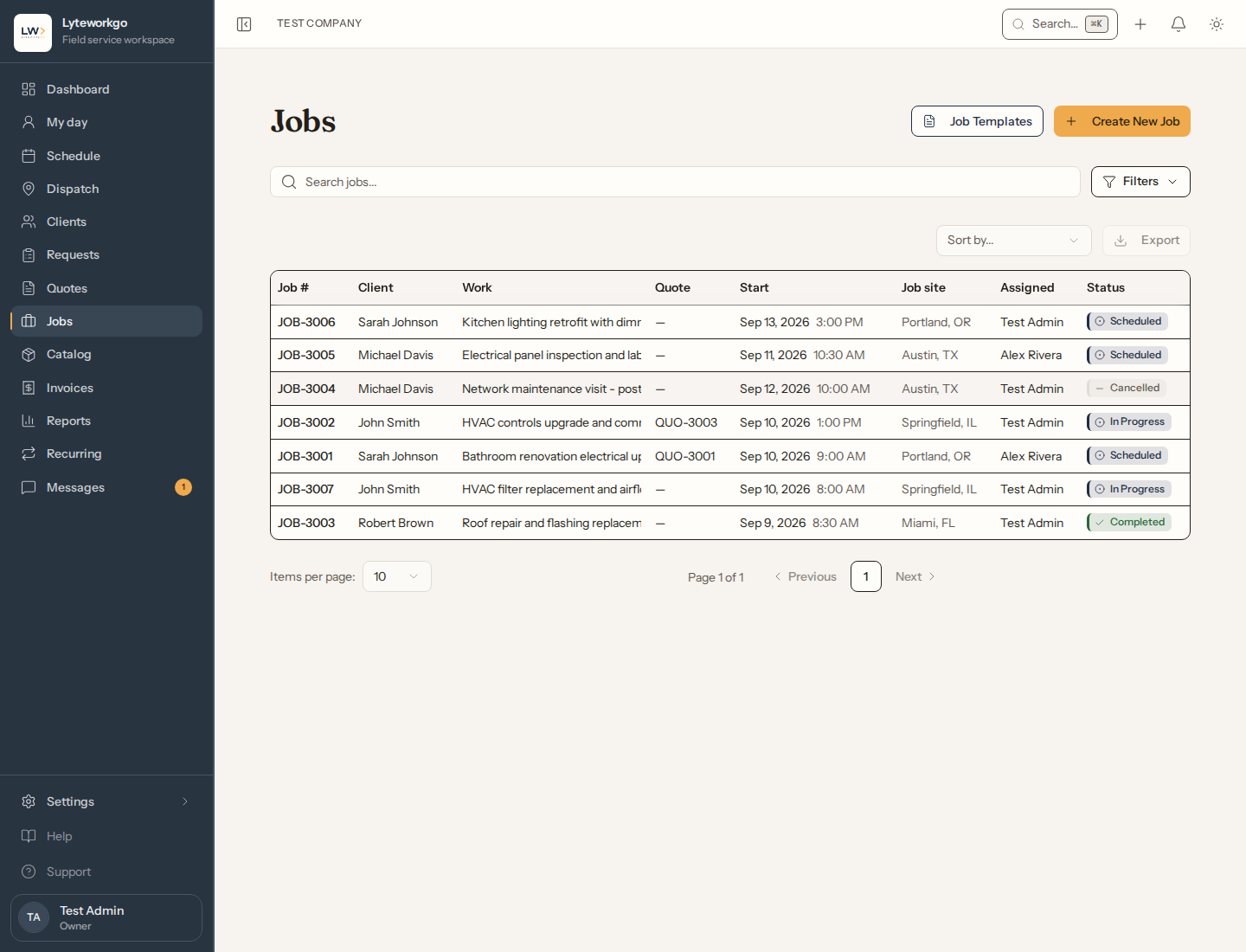
The list
Search and filter by status, date, scheduled vs not, recurring vs one-time, client, and assignee. Export, Job templates, and Create New Job live here.
Whose jobs you see. Owners, admins, Office staff and Billing see every job. Billing's view is read-only, apart from creating the invoice. A Field tech sees the jobs they are booked on and the unassigned ones they created, unless their access includes See everyone's work, not only their own. Export is for owners and admins, Billing by default, and Office staff with Export data turned on.
Statuses you will see
- Draft — not ready to schedule.
- Ready — can be scheduled.
- Scheduled — on the calendar.
- In progress — the tech has started.
- Completed — work is done.
- Cancelled — will not happen.
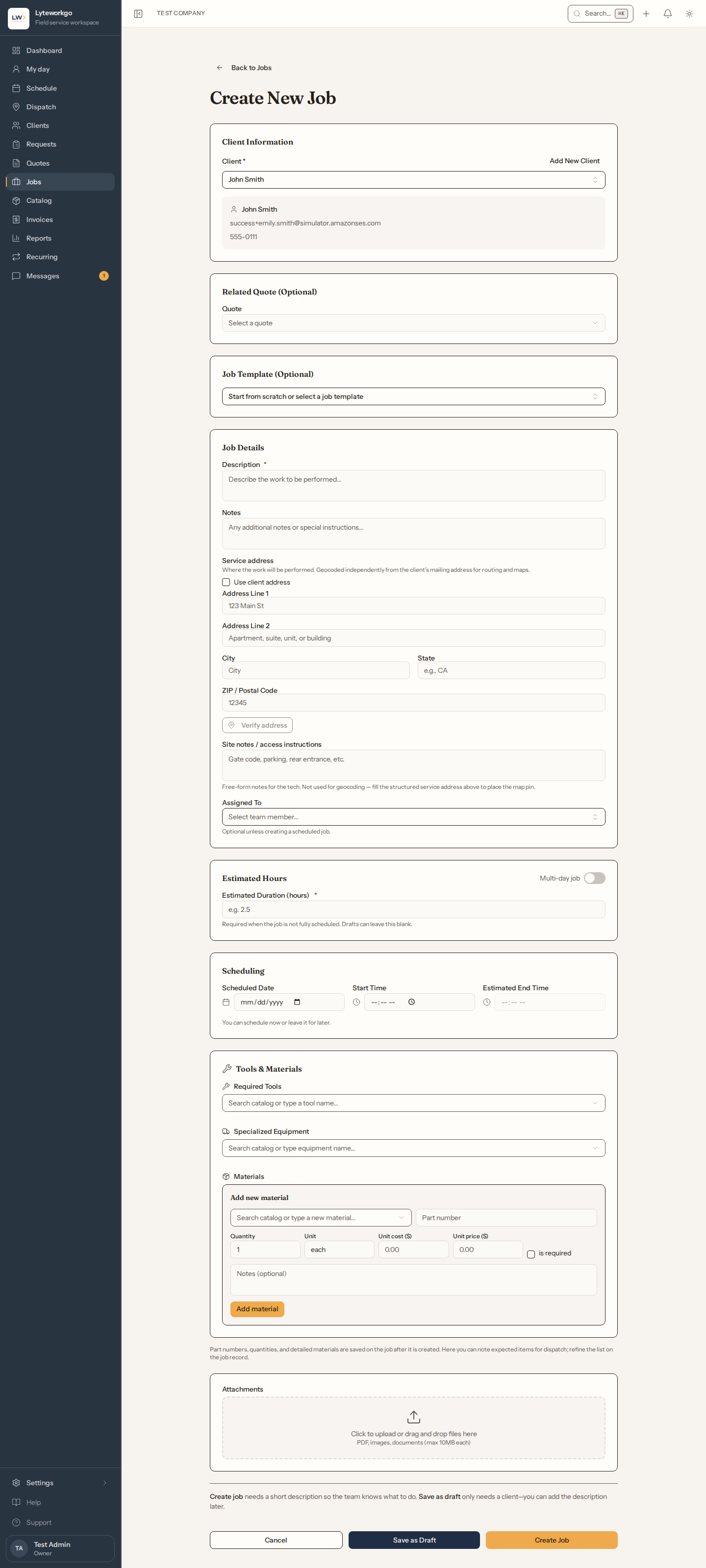
Creating a job
Pick the client, optionally a job template, and link a quote or request when it applies. Add description, service address (the client’s mailing address, one of their saved service addresses, or a new one), estimated hours, assignee, tools, and materials from the catalog. A template’s checklist comes with it: its steps are listed under the template and added to the job, and you can add or change steps on the job once it’s saved. When you start a job from a quote, the description is filled in from the quote’s accepted lines; change it if you like. Save as a draft or create the job.
If the customer gave you a purchase order or reference number, put it in PO / reference #; every invoice you make for the job prints it.
The assignee has to be someone who can be booked for work — an owner, an admin, a Field tech or a helper. Office staff and Billing can be given requests and quotes, but not jobs; a helper can be given jobs, but never requests or quotes. Assigning a job to anyone but yourself needs Assign and reschedule other people’s work: owners and admins always, and Office staff by default. Field techs aren’t offered it.
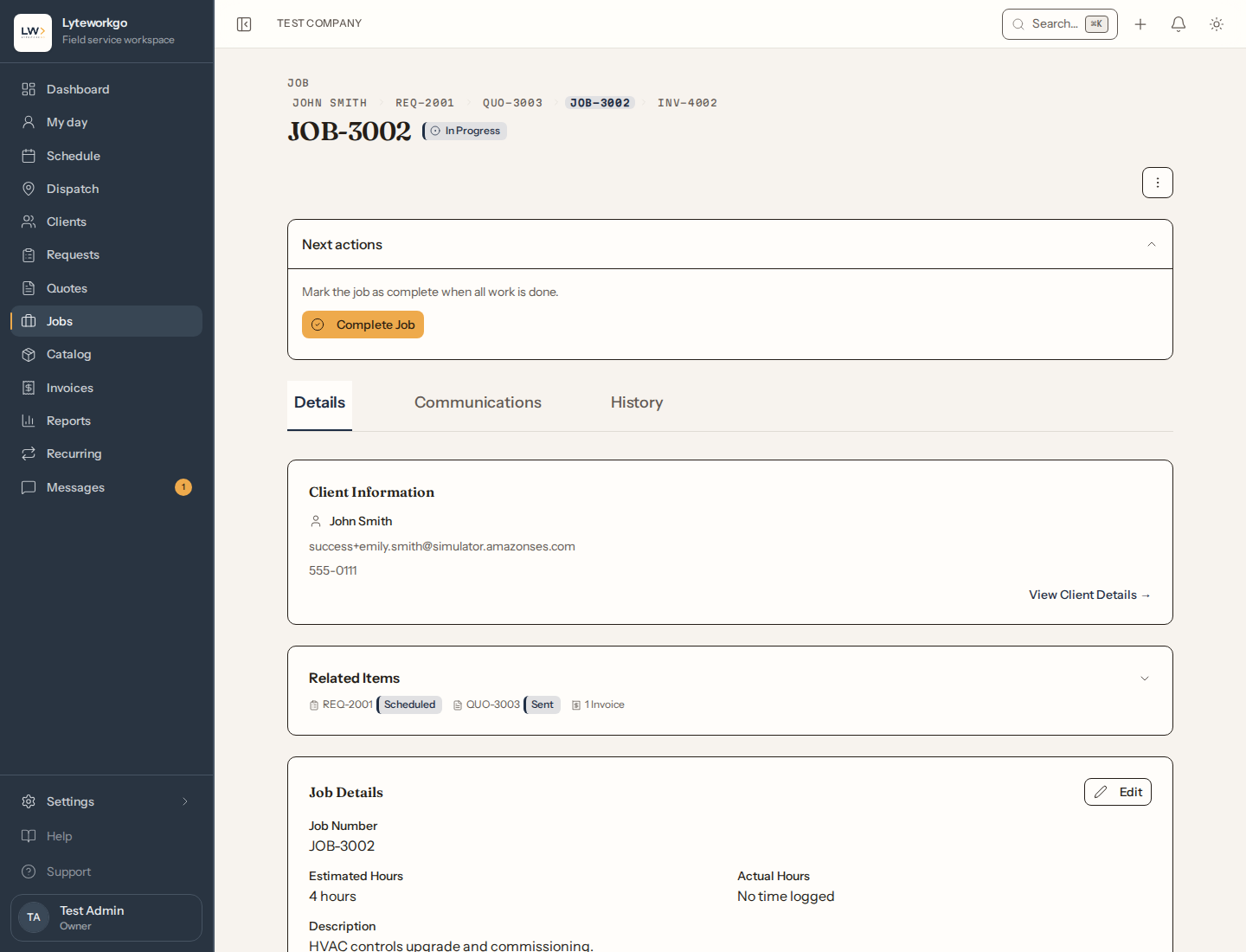
On a job
The next action walks the visit:
- Schedule (or reschedule / cancel) — you can notify the customer.
- On the way — text the customer that someone is setting off. Stays available once the visit is in progress.
- Start job.
- Complete job — opens the completion screen: the work done, notes, and the customer’s sign-off. See Completing a job and customer sign-off.
- Create invoice — you will see a reminder if the job is complete but not billed yet, or if it already has an invoice.
The “on the way” text is SMS only, with no email version, so it can’t go to a client with no phone number on file or with text notifications turned off. It is not sent outside the customer’s local texting hours, and unlike an appointment reminder it is not held until morning: “we’re on our way” is not true an hour later.
You can duplicate a job (as Draft or Ready), edit checklist / tools / materials, add notes, time and files, change assignee or hours, or delete.
Ticking the checklist. Tick an item and it is saved straight away — there’s no Save to press — and the item shows who ticked it and when. Tick it again to untick it. A note on an item is saved the same way when you choose Save under it. If a tick can’t be saved, the item goes back and a message says why. To add or remove items, choose Edit on the checklist and then Save Changes; a new item can be ticked once it’s saved. Items can’t be ticked on a draft (promote it to a job first), or once the job is completed or cancelled.
The Crew card puts more people on the same job, each on their own day, once there’s someone on your account besides you — see Crew on a job.
If you can see costs, the job’s Profit tab shows what the job made — revenue next to materials, labor and expenses — and is where you add the job’s expenses and receipts. See Job profit and expenses.
When the job needs more (or less) than was agreed, the Change orders card prices the change and gets the customer’s signature before it changes the bill — see Change orders.
Assigning, invoicing, deleting and notes. Giving a job to someone else, taking one from a colleague, taking yourself off one, or moving someone else's visit (its day, time or estimated hours) needs Assign and reschedule other people's work. Owners and admins always have it and Office staff have it by default; Field techs aren't offered it. See Customizing access. Create invoice needs Create and send invoices: owners, admins and Billing always, Field techs by default, and Office staff when it is turned on. Delete needs Delete requests, quotes and jobs: owners and admins always, Office staff when it is turned on. Without it, Delete draft still works on a draft job you wrote that is still yours. A note can be deleted, and a time entry edited or deleted, only by the person who added it, or by an owner or admin.
If the job came from a recurring plan, the job names the plan. For owners, admins and Office staff, who manage recurring plans, the name links back to it.
Templates
Job templates store default tools, materials, and checklist items, and can add follow-ups after completion — a one-year warranty check-up, say — to every job made from them. Reach them from the jobs list. Recurring plans can also point at a job template. Creating, editing and deleting a template needs owner or admin access, or Office staff with Edit the price book, templates and stock turned on.
Automations you might notice
Appointment reminders (at the freeze horizon — default 7 days — and 24 hours before) can go out when enabled in Automations. If review requests are turned on in System settings, a Google review email goes out on its own the morning after you complete a job — there is no button to press, each job is only ever asked once, and a customer is not asked more than once every 90 days.
Related
- Crew on a job · Change orders · Schedule · Quotes · Invoices · Catalog